A slow website can frustrate visitors, increase the chances that they leave before reading your content, and make everyday website management more difficult. If your WordPress website takes several seconds to load, the problem could be related to large images, caching, plugins, hosting, themes, or unnecessary scripts.
The good news is that you do not always need expensive hosting or advanced coding skills to improve WordPress performance. By measuring your website first and addressing the biggest problems, you can often make noticeable improvements without rebuilding your entire site.
In this guide, you will learn how to speed up a WordPress website using practical techniques, including caching, image optimization, plugin management, database maintenance, and Core Web Vitals improvements.
Why Is Your WordPress Website Slow?
Before changing settings, it helps to understand what might be slowing your website down.
Common causes include:
- Large, uncompressed images that take too long to download.
- Missing or incorrectly configured page caching.
- Too many plugins or plugins that perform expensive operations.
- A slow hosting server or limited hosting resources.
- Heavy themes with unnecessary scripts and styles.
- Excessive third party scripts, advertisements, or tracking tools.
- Poorly optimized fonts, CSS, and JavaScript.
- Slow database queries or excessive background tasks.
- High server load caused by traffic spikes or unwanted requests.
Not every website has the same problem. Installing another optimization plugin will not necessarily help if the real issue is a slow server or an oversized image above the fold.
Start by measuring your website so you can prioritize the changes that matter most.
1. Test Your Website Speed Before Making Changes
The first step is to establish a baseline. Test your homepage and several important pages, such as a blog post, category page, and any page that receives significant traffic.
You can use these free tools:
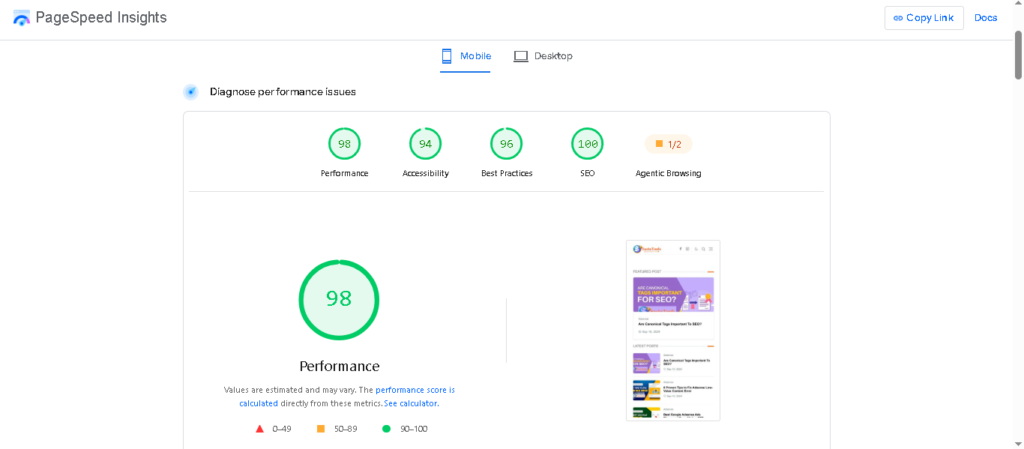
- Google PageSpeed Insights to inspect performance and receive optimization suggestions.
- GTmetrix to review loading behavior and identify large resources.
- Google Search Console to monitor Core Web Vitals for eligible groups of real user pages.
Run tests more than once when possible. Results can vary because of server load, network conditions, browser settings, and testing locations.
Pay particular attention to the mobile results. A page that loads quickly on a powerful desktop computer may perform poorly on a mobile device using a slower connection.
Record the results before changing anything. After applying improvements, run the same tests again under similar conditions. This helps you determine whether your changes actually worked.
2. Enable WordPress Page Caching
Caching is one of the most useful ways to improve WordPress performance.
Normally, WordPress processes requests using PHP, queries the database, and generates the page content. Page caching stores a ready made version of a page so that eligible requests can be served without repeating the entire process.
This can reduce server workload and improve response times, particularly for blogs and websites whose content does not change on every visit.
How to enable caching
- Check whether your hosting provider already offers server side or built in WordPress caching.
- Choose a caching solution that works with your hosting environment.
- Enable page caching according to the plugin or hosting documentation.
- Clear the existing cache after making important changes.
- Test the homepage, posts, menus, forms, and logged in functionality.
Popular options include LiteSpeed Cache, WP Super Cache, W3 Total Cache, and other solutions supported by your hosting provider.
Important: LiteSpeed Cache’s server level caching features depend on a compatible server environment. Installing the plugin alone does not guarantee that every feature will work on every host.
Avoid running multiple page caching plugins with overlapping features. They can conflict, create confusing settings, or cause unexpected behavior.
For more details, read the official WordPress caching documentation.
3. Optimize Images Before Uploading Them
Images often account for a large proportion of a webpage’s downloaded content. Uploading oversized photographs directly from a phone or camera can make your WordPress website slower than necessary.
For example, if an image is several megabytes in size but appears in a small content area, visitors may download much more data than the page requires.
Practical image optimization tips
- Resize images to dimensions appropriate for their display area.
- Compress images before uploading them.
- Use WebP or AVIF where your image workflow and website support them.
- Use JPEG for suitable photographs and PNG when transparency or other specific requirements justify it.
- Avoid uploading several versions of the same image when they are not needed.
- Set explicit image dimensions where appropriate to help prevent layout shifts.
WordPress generates several image sizes for many uploaded images. Use suitable responsive image markup so the browser can select an appropriate version rather than downloading an unnecessarily large file.
For a featured image, choose dimensions that suit your theme and layout. Do not assume every image needs to be uploaded at full camera resolution.
Also avoid compressing an image so aggressively that it becomes visibly blurry. The goal is to reduce file size while preserving sufficient visual quality.
4. Use Lazy Loading for Below the Fold Images
Lazy loading delays loading certain images until they are approaching the visible area of the screen. This can reduce the amount of work and data required when a visitor first opens a long article.
WordPress supports native lazy loading for many images, so additional plugins are not always necessary.
However, lazy loading should not be applied blindly to every image.
If the main featured image or another large image is the element responsible for Largest Contentful Paint, delaying it can make the page appear slower. Keep important above the fold images readily available and prioritize them when appropriate.
Test the results after changing lazy loading settings. Look for missing images, layout shifts, and changes in loading performance.
5. Choose a Lightweight WordPress Theme
Your WordPress theme affects the HTML, CSS, JavaScript, fonts, and layout resources needed to display your website.
A theme with unnecessary animations, large scripts, complex page builders, or excessive visual effects may require more resources than a simpler alternative.
When selecting a theme, consider:
- Mobile responsiveness.
- Clean and maintainable code.
- Compatibility with your plugins.
- Regular security and compatibility updates.
- The amount of CSS and JavaScript loaded on typical pages.
- Whether you can disable features you do not use.
If your existing theme is already lightweight, changing it may offer little benefit. Instead, identify specific components that are causing delays.
Before switching themes, create a complete backup and test the replacement on a staging site. Theme changes can affect menus, widgets, page layouts, and other design elements.
6. Remove Unnecessary WordPress Plugins
The number of installed plugins is not the only factor that determines speed. A single poorly optimized plugin can cause more problems than several lightweight plugins.
Plugins may add database queries, scripts, stylesheets, external requests, scheduled tasks, or background processes.
Review your installed plugins and ask whether each one is necessary.
How to review plugins safely
- Make a backup of your website.
- List plugins that are inactive, duplicated, or no longer required.
- Check whether two plugins provide overlapping functionality.
- Test suspected performance problems on a staging website where possible.
- Disable or remove unnecessary plugins after confirming that the website does not depend on them.
- Run your speed tests again.
Do not disable security, backup, payment, or essential functionality plugins on a live website just to experiment. Some plugins perform important tasks that are not immediately visible.
If a plugin appears to cause a slowdown, check its documentation and support resources before replacing it. The correct fix may involve adjusting a particular feature rather than removing the plugin entirely.
7. Minify CSS and JavaScript Carefully
CSS controls your website’s appearance, while JavaScript supports interactive features. Large or inefficient files can increase download and processing time.
Minification removes unnecessary characters, such as whitespace and comments, from supported files. Some optimization tools can also delay or defer certain scripts to reduce the amount of work performed during initial page loading.
These techniques can help, but they are not guaranteed to improve every website.
Recommended approach
- Remove unused styles and scripts where practical.
- Minify supported CSS and JavaScript files.
- Defer noncritical scripts when their functionality permits it.
- Delay third party scripts only when doing so does not break important features.
- Avoid combining files automatically without testing compatibility.
After enabling an optimization feature, check the website on desktop and mobile. Test navigation menus, search, forms, consent banners, sliders, and any interactive elements.
If the layout breaks or a feature stops working, disable the most recent change and test again. Apply optimizations incrementally rather than switching on every setting at once.
8. Use a Content Delivery Network
A content delivery network, or CDN, distributes copies of eligible website resources across servers in different geographic locations.
When a visitor requests a resource, a CDN may deliver it from a nearby location rather than requiring every request to travel to your main hosting server.
A CDN can be useful if your audience is spread across several countries or is located far from your hosting server.
Depending on the provider and configuration, a CDN may help deliver images, CSS, JavaScript, and other static files. Some services also support HTML page caching.
Cloudflare is one option, but the right setup depends on your hosting environment and website requirements.
Before enabling CDN features, check your DNS settings, SSL configuration, caching behavior, and any existing optimization services. Incorrect settings can cause redirect loops, stale pages, or other problems.
A CDN does not automatically fix a slow database, inefficient plugin, or poorly written theme. Address those problems separately.
9. Keep WordPress, PHP, Themes, and Plugins Updated
Outdated software can contain bugs, compatibility problems, and security vulnerabilities. Updates may also improve performance, although not every update makes every website faster.
Keep WordPress core, your active theme, and plugins maintained.
Your PHP version also matters because WordPress runs on PHP. Newer supported PHP versions can offer performance and security improvements, but compatibility depends on your theme, plugins, and hosting configuration.
Before changing PHP versions:
- Create a complete backup.
- Check the compatibility of your theme and plugins.
- Test the change on a staging site if available.
- Confirm that your hosting provider supports the target version.
- Check the website’s front end, admin dashboard, forms, and important features after the change.
Do not switch to an unsupported or untested version just to chase a speed score. Stability, compatibility, and security matter as much as raw performance.
10. Optimize Your WordPress Database
WordPress stores posts, pages, settings, comments, and other information in a database. Some websites accumulate unnecessary data through post revisions, expired transients, spam comments, and plugin records that are no longer required.
Cleaning up suitable unused data may reduce database overhead, but database optimization is not a substitute for diagnosing slow queries or an underpowered server.
Safe database maintenance
- Remove spam comments and empty the trash when appropriate.
- Review unused plugins and themes.
- Back up the database before performing cleanup.
- Use a reputable maintenance tool or your hosting provider’s supported features.
- Avoid deleting database tables or options unless you understand their purpose.
Be especially careful with autoloaded options in the WordPress options table. Plugins and themes can store settings that WordPress loads during requests. Excessive or poorly managed autoloaded data can contribute to slow responses, but deleting options indiscriminately can break your website.
If database queries remain slow after routine cleanup, ask your hosting provider to help investigate query performance, resource limits, and server logs.
11. Reduce Unnecessary Fonts and Third Party Scripts
External resources can add extra network requests and processing work.
Examples include advertising scripts, analytics, embedded videos, social media widgets, chat tools, external fonts, and tracking pixels.
Review the resources loaded on important pages and remove those that provide little value.
For fonts, consider using a limited number of font families and weights. If you host fonts locally, make sure licensing and technical requirements permit it. Configure font loading carefully and avoid downloading many styles that the design never uses.
For embedded videos, use a lightweight preview or click to load approach where suitable. This can avoid loading the full video player before the visitor chooses to watch.
Do not remove essential analytics, consent management, advertising, or security resources without considering their purpose. The objective is to remove unnecessary overhead, not to break business requirements.
12. Improve Your Core Web Vitals
Core Web Vitals measure important aspects of real world user experience.
Google currently identifies three Core Web Vitals:
- Largest Contentful Paint (LCP): How quickly the main visible content loads.
- Interaction to Next Paint (INP): How responsive a page is to user interactions.
- Cumulative Layout Shift (CLS): How much the visible page layout shifts unexpectedly.
The commonly recommended good thresholds are:
| Metric | Good result |
|---|---|
| LCP | 2.5 seconds or less |
| INP | Less than 200 milliseconds |
| CLS | Less than 0.1 |
These thresholds should be evaluated using the appropriate measurement method, particularly real user data at the 75th percentile when available.
How to improve LCP
Optimize the main visible image, reduce server response time, improve caching, and avoid delaying critical resources.
How to improve INP
Reduce unnecessary JavaScript execution, investigate long tasks, and ensure that interactive elements respond without excessive processing.
How to improve CLS
Reserve space for images, advertisements, embeds, and other content that loads later. Avoid inserting new elements above existing content without allocating room for them.
Use PageSpeed Insights and Search Console to investigate the relevant metrics. A laboratory test can help identify issues, but it is not identical to the experience measured from real visitors.
Read Google’s Core Web Vitals documentation for additional guidance.
13. Improve Your Hosting Environment
Optimization plugins cannot compensate for every hosting limitation.
If your server consistently takes a long time to respond, the cause could include limited CPU or memory, storage performance, resource contention, inefficient database queries, or high traffic.
Before purchasing a more expensive plan, check whether your current hosting account is reaching its resource limits.
Ask your provider about:
- Available CPU and memory resources.
- Server side page caching.
- PHP and database configuration.
- Storage performance.
- Persistent object caching where appropriate.
- Traffic limits and resource usage.
- Server response times and error logs.
If your website regularly exceeds its resource limits, upgrading to a more suitable hosting plan may be justified.
However, moving to more expensive hosting is not automatically the best solution. Measure performance first and establish whether the server is actually the bottleneck.
14. Keep Caching Settings Simple and Consistent
A common optimization mistake is enabling several tools that attempt to manage the same resources.
For example, a hosting control panel, WordPress caching plugin, CDN, and separate optimization plugin might all attempt to cache pages or rewrite CSS and JavaScript.
This can lead to conflicting settings or make troubleshooting difficult.
Use one clearly understood approach for each overlapping function whenever practical.
After changing caching settings:
- Purge the relevant WordPress cache.
- Purge the hosting cache if your host provides one.
- Purge the CDN cache when the changed resource is cached there.
- Open the website in a private browser window.
- Test important pages and functionality.
If you are troubleshooting a page that still displays old content, review the cache at each layer instead of repeatedly installing new plugins.
15. Monitor Website Speed After Optimization
Website optimization is an ongoing process. New plugins, images, advertising placements, theme updates, and website features can change performance over time.
Create a simple monitoring routine.
Test your key pages after major design changes, theme updates, or plugin installations. Review Search Console’s Core Web Vitals report periodically and investigate repeated issues rather than reacting to a single test result.
Keep a record of major changes and their results. If a performance problem appears after a specific update, you can use that record to narrow down the cause.
Avoid making many unrelated changes simultaneously. When you adjust one area at a time, it becomes easier to determine what helped and what caused new problems.
A Practical WordPress Speed Optimization Checklist
Use this checklist to organize your work:
- Test the homepage and important content pages.
- Record baseline performance results.
- Enable compatible page caching.
- Resize and compress large images.
- Check lazy loading for above the fold images.
- Review the theme and remove unnecessary features.
- Audit plugins and duplicate functionality.
- Test CSS and JavaScript optimization carefully.
- Consider a CDN if your audience or hosting setup would benefit.
- Keep WordPress, PHP, themes, and plugins supported and updated.
- Back up before database cleanup.
- Review third party scripts and external fonts.
- Investigate Core Web Vitals problems.
- Check hosting resource usage.
- Repeat your speed tests after making changes.
Frequently Asked Questions
How can I speed up WordPress without a plugin?
You can optimize image sizes before uploading, remove unnecessary features, reduce third party scripts, use suitable hosting, and improve the theme’s code. Your hosting provider may also offer built in caching. Some optimizations require technical knowledge, so create a backup before editing website files or server settings.
Which WordPress caching plugin is best?
There is no single best plugin for every website. Choose a solution compatible with your hosting environment and avoid overlapping caching systems. A plugin with fewer features but a reliable configuration may be more suitable than a complicated setup that you cannot troubleshoot.
Does website speed affect SEO?
Google uses Core Web Vitals as part of its ranking systems, and good performance can contribute to a better page experience. However, strong performance scores do not guarantee high rankings. Relevant, useful content and other SEO factors remain important.
What is a good WordPress loading time?
There is no single loading time that guarantees a good experience for every page. Assess real user metrics where available, including LCP, INP, and CLS. Also consider how quickly visitors can see and use the main content.
Why is my WordPress website slow even with a caching plugin?
Possible causes include a slow server, unoptimized images, heavy JavaScript, inefficient plugins, database queries, external scripts, or incorrect cache settings. A caching plugin addresses only certain parts of the performance problem, so measure your website and investigate the bottleneck.
Can too many plugins slow down WordPress?
Plugins can affect performance, but the number alone does not tell the whole story. Their code, database queries, scripts, and background tasks matter. Test plugins individually when investigating a suspected performance problem.
Should I aim for a perfect PageSpeed Insights score?
Not necessarily. A perfect laboratory score is not a guarantee of better rankings or a perfect real user experience. Focus on meaningful improvements, accessibility, stability, responsiveness, and the needs of your visitors.
Final Thoughts
Learning how to speed up a WordPress website starts with measuring performance and identifying the actual cause of slow loading. For many sites, useful first steps include enabling compatible caching, optimizing images, reviewing plugins, and reducing unnecessary scripts.
Make changes gradually, keep a backup, and test the results after each major adjustment. If your server is the bottleneck, investigate hosting resources rather than relying on more plugins.
The goal is not simply to achieve a high score in a testing tool. It is to make your WordPress website faster, more stable, and easier for visitors to use.
Further Reading
For additional technical guidance, consult these official resources: