Seeing the message “There has been a critical error on this website” can be worrying, especially when you cannot access your WordPress dashboard. This error usually means that WordPress encountered a serious PHP error that prevented part of the website from running correctly.
The problem may be caused by a faulty plugin, an incompatible theme, a PHP compatibility issue, exhausted server resources, or a problem with custom code. The good news is that you can often identify and fix the cause without rebuilding your website.
In this guide, you will learn how to fix the WordPress critical error step by step, including what to do when your admin dashboard is unavailable.
Before you begin: If possible, create a backup of your website files and database. If the error started immediately after an update, note which plugin, theme, or setting changed. This information can help you identify the cause more quickly.
What Causes the WordPress Critical Error?
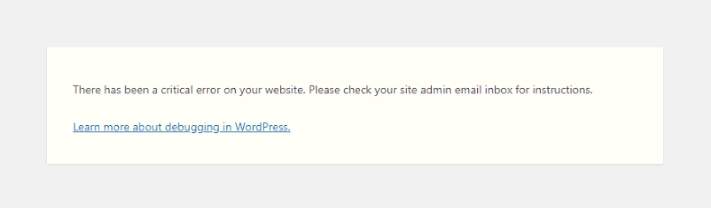
WordPress can display a critical error when PHP encounters a fatal error that prevents the requested page from running normally.
Common causes include:
- A plugin containing incompatible or faulty code.
- A theme that conflicts with WordPress or another plugin.
- A PHP version that is incompatible with a plugin or theme.
- Custom PHP code with a syntax or runtime error.
- Insufficient PHP memory for a particular operation.
- Corrupted or incomplete website files.
- A failed update or an incompatible software change.
The message itself does not identify the exact cause. You may need to check the recovery email, hosting error logs, or WordPress debug log to find the relevant file and error message.
1. Check Your WordPress Recovery Email
Start with the simplest option. WordPress may send an email to the site administrator when it detects a fatal error.
The email may contain details about the affected plugin or theme and a special recovery mode link.
What to do
- Open the administrator email account associated with your WordPress website.
- Search for an email mentioning a technical issue or critical error.
- Check your spam or junk folder if you cannot find it.
- Read the error details and identify the plugin or theme mentioned.
- If the email provides a recovery mode link, open it and follow the instructions.
Recovery mode can allow you to access the dashboard while the problematic component is paused for your recovery session.
If you regain access, review the identified component. Update it if a compatible fix is available, disable it if necessary, or contact its developer for assistance.
Do not assume the named plugin is always the root cause. The error details are an important clue, but other code may be involved.
If no recovery email arrives, continue with the following methods.
2. Disable WordPress Plugins
A plugin conflict is a common reason for WordPress errors, particularly after a plugin update or the installation of a new plugin.
If you can access the WordPress dashboard, open Plugins and deactivate the plugin you suspect. If you cannot access the dashboard, you can disable plugins through your hosting file manager or FTP.
Disable plugins using File Manager
- Log in to your hosting control panel.
- Open File Manager or connect using your supported FTP or SFTP method.
- Navigate to the WordPress installation directory.
- Open the
wp-contentfolder. - Locate the directory named
plugins. - Rename it to
plugins.hold. - Reload your website and check whether the critical error has disappeared.
Renaming the plugins directory temporarily prevents WordPress from loading plugins from that location.
If the website works again, a plugin is likely involved. Rename plugins.hold back to plugins, then reactivate plugins individually through the dashboard to identify the problem.
If you cannot access the dashboard after restoring the folder name, you may need to use WordPress’s documented recovery procedures or ask your hosting provider for help.
Important: Disabling all plugins may affect forms, caching, security, payments, and other website features. Use this as a temporary diagnostic step, not a permanent solution.
3. Switch to a Default WordPress Theme
If disabling plugins does not solve the problem, your active theme or custom theme code may be responsible.
This is particularly worth checking if the error started after installing a new theme, updating your current theme, or editing its PHP files.
If you can access the dashboard
Open Appearance, then Themes. Activate an installed default WordPress theme that is compatible with your WordPress version.
Check whether the error disappears.
If you cannot access the dashboard
You can use your hosting file manager to inspect the directory:
wp-content/themes/
Before changing anything, make a backup and identify the active theme’s directory. Renaming that directory can prevent WordPress from loading the theme, but the method may not work as expected if there is no suitable fallback theme installed.
Do not delete your theme. Renaming it is a temporary diagnostic measure, and it can affect your site’s appearance until the issue is resolved.
If switching themes fixes the error, review recent theme changes, custom PHP snippets, and compatibility with your installed plugins. Contact the theme developer if you cannot identify the cause.
4. Check Your PHP Version and Compatibility
WordPress, themes, and plugins rely on PHP to execute server side code. A plugin or theme that is incompatible with your active PHP version can produce fatal errors.
This can happen after a hosting provider changes the available PHP versions or after you manually switch versions in the hosting control panel.
How to investigate
- Open your hosting control panel.
- Find the PHP version settings for the affected website.
- Check which PHP version is currently active.
- Review the compatibility requirements of WordPress, your theme, and your plugins.
- Check the hosting error logs for messages related to PHP functions, syntax, or incompatible code.
If the error began immediately after a PHP version change, compatibility is an important possibility to investigate.
Do not switch randomly between PHP versions. An older version may be unsupported or insecure, while a newer version may expose compatibility problems in outdated code.
If you need to change PHP versions, create a backup first and test the change in a staging environment where possible. Use a supported version compatible with your website’s components.
5. Enable WordPress Debug Logging
If the previous methods do not identify the cause, the WordPress debug log may provide a more specific error message.
This method requires access to your WordPress files. If you are unfamiliar with editing configuration files, ask your hosting provider or a developer to help.
Step 1: Open wp-config.php
Using File Manager or FTP, locate wp-config.php in the main WordPress installation directory.
Download a copy before editing it.
Step 2: Configure debugging safely
Look for existing WP_DEBUG settings. Avoid adding duplicate definitions. For a temporary diagnostic session, the relevant configuration can look like this:
define( 'WP_DEBUG', true );
define( 'WP_DEBUG_LOG', true );
define( 'WP_DEBUG_DISPLAY', false );
Add or update these definitions before the following comment in the file:
/* That's all, stop editing! Happy blogging. */If these constants are already defined, edit the existing definitions instead of creating duplicates.
The WP_DEBUG_DISPLAY setting is important because it helps prevent PHP error details from being displayed to public visitors. If the settings are overridden by your hosting environment, consult your host’s documentation.
Step 3: Reproduce the error
Open the page that triggers the critical error and reproduce the problem once.
Then inspect:
wp-content/debug.log
If logging is configured correctly and the relevant PHP error is captured, the log may identify the file, function, or plugin associated with the failure.
Look for messages such as a fatal error, an uncaught exception, an undefined function, or a file path pointing to a plugin or theme.
Step 4: Interpret the error
For example, a log entry that references a specific plugin directory may indicate where the problem occurred. A PHP file path alone does not always prove that the file is the original cause, so review the full error message and surrounding context.
If the log does not contain useful information, check your hosting provider’s PHP error logs as well.
Step 5: Turn debugging off
Once you have finished diagnosing the problem, return WP_DEBUG and WP_DEBUG_LOG to their appropriate production settings.
Secure or remove the debug log after preserving any information needed for troubleshooting. Log files may contain sensitive paths or other details, so ensure they cannot be accessed publicly.
For more information, consult the official WordPress debugging documentation.
6. Check the PHP Memory Limit
A WordPress critical error can sometimes occur when a PHP process runs out of available memory.
However, increasing the memory limit will not fix every fatal error. First check your hosting error logs for evidence of memory exhaustion.
If memory is the problem, review your current PHP memory limit and the resources available under your hosting plan.
You may be able to adjust the limit through your hosting control panel or WordPress configuration, depending on your environment.
For example, WordPress supports a memory limit setting in wp-config.php:
define( 'WP_MEMORY_LIMIT', '256M' );This is an example, not a universal recommended value. Your host may impose a separate PHP limit, and a setting in WordPress cannot necessarily override that server limit.
Before changing the configuration, check whether WP_MEMORY_LIMIT is already defined. Avoid adding duplicate definitions or setting a value your hosting plan cannot support.
If memory errors continue, investigate plugins, themes, database queries, and server resource limits rather than repeatedly increasing the memory allocation.
7. Restore a Recent Backup
If the error appeared after a plugin update, theme change, custom code edit, or WordPress update, restoring a known good backup may be the quickest recovery option.
Before restoring, identify when the problem started and select a backup created before that time.
How to restore safely
- Confirm that you have a backup containing both website files and the database.
- Keep a copy of the current website before overwriting files or data.
- Use your hosting provider’s restoration feature or the backup plugin’s documented procedure.
- Verify that you are restoring the correct website and database.
- Test the homepage, admin dashboard, important pages, forms, and other essential functions.
A restoration can remove changes made after the backup was created. On websites that receive frequent orders, comments, registrations, or user submissions, consider how recent database changes will be preserved.
If the error resulted from a security incident, restoring a backup alone may not resolve the underlying vulnerability. Investigate the cause and secure the site before returning it to normal operation.
For a more detailed explanation, read our guide on how to back up a WordPress website.
8. Check for Corrupted WordPress Core Files
If plugins, themes, PHP compatibility, and memory usage do not explain the error, WordPress core files may be damaged or incomplete.
This can happen after a failed update, an interrupted file transfer, or an incorrect manual file change.
Before replacing files, create a backup of the website files and database.
If you have dashboard access, check whether WordPress offers an appropriate core update or repair path. If the dashboard is unavailable, follow the official WordPress instructions for safely replacing core files.
Do not overwrite wp-content or wp-config.php with generic copies. These contain site specific content, configuration, plugins, themes, and uploads.
After replacing the appropriate core files, check whether the website loads and review the logs for any remaining errors.
If you are uncertain which files to replace, ask your hosting provider for assistance rather than deleting directories at random.
9. Contact Your Hosting Provider or Developer
If the critical error persists after these checks, the problem may require access to server logs or a deeper code investigation.
Contact your hosting provider if you suspect:
- PHP crashes or server resource exhaustion.
- Database connectivity problems.
- File permission issues.
- Hosting level configuration problems.
- An error that began after a server side change.
If the error references custom code, a plugin, or a theme, the relevant developer may be better placed to investigate the issue.
When requesting support, provide the exact error message, when it started, any recent changes, and the relevant log excerpt. Remove passwords, API keys, database credentials, and other sensitive information before sharing logs.
Avoid sending your entire configuration file or database publicly.
What to Do If the WordPress Critical Error Keeps Returning
If the website works temporarily but the error returns, do not repeatedly disable components without identifying the underlying cause.
Record the steps that reproduce the error and review logs immediately after it occurs. Check whether the failure happens during a particular action, such as opening the editor, saving a post, uploading an image, or running a scheduled task.
If the problem occurs only on one page, investigate that page’s content, blocks, shortcodes, and related plugin features.
If the entire site fails, prioritize PHP logs, recent software changes, plugin and theme compatibility, and hosting resource usage.
Apply one change at a time and retest the affected functionality. This approach helps you identify the real cause and reduces the risk of creating additional problems.
Frequently Asked Questions
What does the WordPress critical error mean?
It generally indicates that WordPress encountered a serious PHP error that prevented the requested page or part of the website from running normally. The message alone does not identify the exact cause.
Can I fix the WordPress critical error without accessing the dashboard?
Yes. You can inspect your recovery email, use the hosting file manager to temporarily disable plugins, review PHP error logs, or restore a backup. Make a backup before changing files or databases.
Why did WordPress show a critical error after a plugin update?
The update may have introduced a bug or incompatibility with your WordPress version, PHP version, theme, or another plugin. Check the recovery email and error logs, then update or temporarily disable the affected component as appropriate.
Will changing the PHP version fix the critical error?
Only if PHP compatibility is the cause. Check the logs and component requirements before switching versions. Changing PHP without evidence may create additional problems.
Is it safe to enable WP_DEBUG on a live website?
Debug logging can help diagnose production problems, but it must be configured carefully. Keep WP_DEBUG_DISPLAY disabled, secure the logs, and turn debugging off after the investigation. Where possible, reproduce and investigate errors on a staging environment.
Should I reinstall WordPress to fix the critical error?
Not as a first step. Check the recovery email, plugins, theme, PHP compatibility, logs, and backups first. Reinstalling WordPress without identifying the cause may fail to resolve the problem and can put your website data at risk.
Final Thoughts
The WordPress critical error can be caused by several different issues, so the most effective fix is to identify the underlying cause rather than changing settings at random.
Start with the recovery email, then check recent plugin and theme changes. If necessary, temporarily disable plugins, investigate PHP compatibility, inspect debug logs, and consider restoring a known good backup.
Always back up your website before making significant changes, keep diagnostic logs secure, and turn debugging off when you have finished. If the problem involves server configuration or unfamiliar code, your hosting provider or a qualified WordPress developer can help you recover the website safely.