Have you updated your WordPress website but still see the old content when you visit the live page? Or does your website continue displaying an outdated design after you change its colours, fonts, images, or layout?
The problem may be related to caching.
WordPress websites can use browser caching, caching plugins, hosting level caching, and content delivery networks (CDNs) to improve loading speed. However, when an older version of a page or file remains cached, your latest changes might not appear immediately.
Fortunately, clearing the appropriate cache is usually straightforward. In this guide, you will learn how to clear WordPress cache safely, troubleshoot common caching problems, and identify which caching layer you need to refresh.
What Is WordPress Cache?
A cache stores a temporary copy of data so that it can be retrieved more quickly the next time it is needed.
For example, a caching plugin may store a ready made version of a WordPress page. Instead of generating the page from scratch for every visitor, the server can deliver the saved version. Browser caching can also store images, stylesheets, and JavaScript files on a visitor’s device.
Caching can reduce server workload and improve website performance. WordPress documentation describes several types of caching, including browser caching, page caching, object caching, and server caching.
The important point is that WordPress caching is not controlled by a single button on every website. The steps you need depend on which caching systems your website actually uses.
Why Should You Clear WordPress Cache?
Clearing your cache can help when:
- Your published changes do not appear on the live website.
- Your homepage displays old content.
- Your updated CSS, fonts, or colours are not visible.
- A new image does not appear after you replace it.
- Your website displays an outdated version of a page.
- You have changed a theme or plugin and need to refresh cached resources.
- You have updated website settings but the front end still looks the same.
Clearing cache is not a universal solution. If your edits were not saved, the wrong page is being displayed, or a plugin is causing a conflict, you will need to address that problem separately.
1. Clear Your Browser Cache
Start with your browser because this is one of the simplest checks and does not require changing your WordPress installation.
Your browser may store images, CSS files, JavaScript files, and other resources locally. If an old resource is reused, parts of your website may appear outdated.
How to clear cache in Google Chrome
- Open Google Chrome.
- Click the three dot menu in the upper right corner.
- Open Settings.
- Select Privacy and security.
- Open the option for deleting browsing data.
- Select the cached images and files option.
- Choose the appropriate time range.
- Confirm the action.
The wording and layout may vary slightly between browser versions.
You can also test your website in an Incognito window before clearing all cached data. On Windows, pressing Ctrl + F5 often forces a refresh of the current page.
After clearing the cache, reopen the affected WordPress page and check whether the latest changes appear.
Important: Clearing cached images and files is different from clearing all browsing data. Avoid deleting saved passwords or other information unless you intend to do so.
2. Clear Cache From Your WordPress Caching Plugin
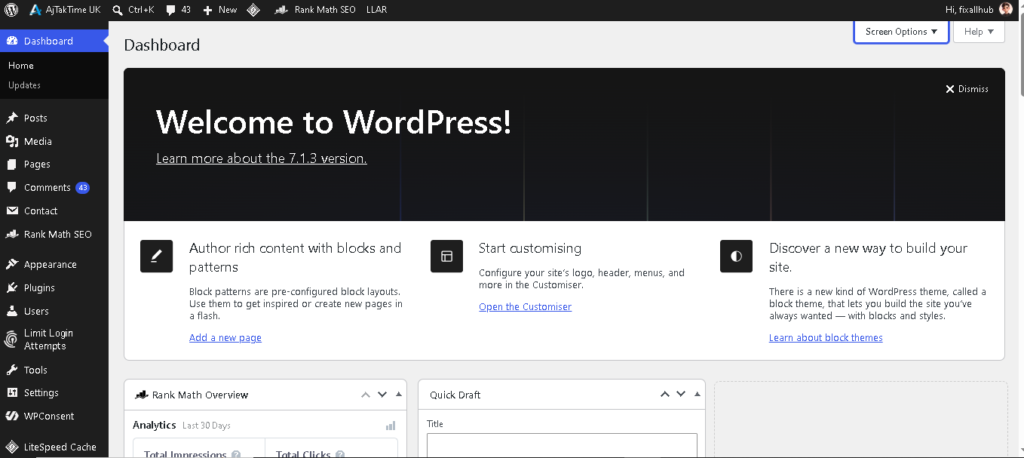
If you use a caching plugin, it may store copies of your pages and other website resources.
Examples of WordPress caching plugins include WP Super Cache, W3 Total Cache, and other performance plugins available in the WordPress plugin directory.
The exact controls depend on which plugin you installed.
Follow these steps
- Sign in to your WordPress dashboard.
- Look for your caching plugin in the dashboard menu or admin toolbar.
- Open its cache management controls.
- Find the option to clear or purge the cache.
- Confirm the action if prompted.
- Visit your public website in a new browser window.
Depending on the plugin, the control might be labelled Clear Cache, Purge Cache, Delete Cache, or something similar.
If your plugin offers separate options for page cache, CSS, JavaScript, or other generated assets, choose the option relevant to your problem. Consult the plugin documentation if you are unsure.
Do not install a second caching plugin simply because you cannot find the existing plugin’s cache clearing option. First identify the caching system already in use.
3. Clear Cache in Hostinger
If your WordPress website is hosted on Hostinger, your hosting environment may provide caching controls separately from WordPress.
Clearing a plugin’s cache does not necessarily clear a server level cache. That is why your changes might remain invisible even after you have purged the cache inside WordPress.
How to check your Hostinger cache
- Sign in to your Hostinger account.
- Open the hosting management area for your website.
- Look for the website performance, caching, or WordPress management controls available for your plan.
- If a cache management option is available, follow the displayed instructions to clear or purge the relevant cache.
- Open your website in a private browser window and check the updated page.
The exact menu names and available features can change. If you cannot find the option, consult Hostinger’s current help documentation or contact its support team.
If you are unsure whether your hosting account uses server level caching, ask support to confirm which cache layers are enabled and how to purge them.
Do not delete website files, modify configuration files, or change database settings just to clear the cache.
4. Clear Cloudflare Cache
Cloudflare is a service that can deliver cached website resources through its network. If your domain uses Cloudflare caching, it may have a separate cache from your WordPress plugin and hosting environment.
This step only applies if Cloudflare is configured for your website.
How to purge Cloudflare cache
- Sign in to your Cloudflare account.
- Select the correct website.
- Open the caching controls in the dashboard.
- Find the cache purge option.
- If available, purge the specific URL or resource that needs updating.
- Revisit the page to check whether the changes are visible.
A targeted purge is often preferable when you know exactly which page or resource is outdated. Purging everything can temporarily increase requests to your origin server while cached content is rebuilt.
If you use a different CDN, follow that provider’s instructions instead.
Remember that clearing Cloudflare cache will not automatically clear your browser cache or every cache used by your WordPress installation.
5. Clear Cache in Your Page Builder
Some WordPress page builders and optimization tools generate CSS files or other assets to improve website performance.
If your text updates but the layout, colours, spacing, or fonts remain unchanged, the problem may involve a cached stylesheet or generated asset.
Try these steps:
- Open the page builder or design tool you use.
- Check whether it provides an option to regenerate CSS or rebuild generated files.
- Follow the tool’s official instructions.
- Clear any applicable caching plugin and hosting cache.
- Refresh the affected page and test it again.
The location of these settings depends on the builder. Do not follow instructions for a different builder unless the same feature exists in your installation.
If you use the WordPress Customizer, verify that your design changes were published. If you edited a stylesheet directly, make sure you modified the file that the live website actually loads.
Avoid editing WordPress core files. Back up your website before making significant changes to theme files.
6. Clear Cache When WordPress Changes Are Not Showing
If you have tried the previous steps but your website still displays old content, investigate the problem systematically.
First, open the relevant post or page in your WordPress dashboard. Confirm that your changes were saved and published.
Next, check that you are viewing the correct URL. If you edited a page called Home, for example, make sure WordPress is actually displaying that page as the homepage.
Then clear the caches that apply to your setup, one layer at a time:
- Browser cache.
- WordPress caching plugin.
- Hosting level cache.
- CDN cache, if configured.
- Generated CSS or assets, if relevant.
After each action, revisit the affected page and check the result. This makes it easier to identify which layer was responsible.
If the changes remain missing, investigate the active theme, page builder, plugins, and server response. A plugin conflict or incorrect template can cause problems that clearing cache alone will not resolve.
For further troubleshooting, read our related guide: WordPress Changes Not Showing? 9 Ways to Fix It.
7. Should You Clear WordPress Cache Regularly?
For most website owners, manually clearing the entire cache after every visit is unnecessary.
Well configured caching systems often refresh relevant cached pages automatically when content is published or updated. Other changes, such as editing theme files or generating new stylesheets, may require additional steps.
A sensible approach is to:
- Let your caching system operate normally.
- Clear the relevant cache after changes that are not appearing.
- Use targeted cache purging where supported.
- Check your website after major theme or plugin updates.
- Avoid repeatedly purging every cache without a reason.
Frequent full cache purges can reduce the benefits of caching because pages and resources may need to be generated or fetched again.
Caching should support your website rather than become a task you need to perform constantly.
8. Common WordPress Cache Problems and Solutions
The homepage still displays old content
Confirm that you edited the page assigned as the homepage under Settings → Reading. Then check the relevant caches.
CSS changes are not visible
Try a hard refresh, clear the relevant cache, and regenerate CSS if your page builder provides that feature. Confirm that the stylesheet you edited is the one used by the live website.
Only some visitors see the old page
Different visitors may have different browser caches, or your website may serve cached content from different layers. Compare the page in a private browser window and, if necessary, another device.
The cache clearing option is missing
Check which caching plugin or hosting system your website uses. Some hosting providers manage caching outside the WordPress dashboard.
Your website becomes slower after clearing cache
Cached pages and resources may need to be rebuilt or fetched again. Some temporary performance changes are expected, but persistent slowness requires further investigation.
Clearing cache does not fix the problem
Check that your edits were saved, confirm the correct URL and template, and investigate possible theme or plugin conflicts. Do not assume caching is the cause of every display problem.
Frequently Asked Questions
How do I clear WordPress cache quickly?
Start by opening the website in a private browser window or performing a hard refresh. If the old content remains, purge the cache through your WordPress caching plugin and check whether your hosting provider or CDN uses an additional cache.
Does WordPress have a built in cache clearing button?
There is no universal cache clearing button for every WordPress installation. The available controls depend on the caching plugins, hosting environment, and other services configured for your website.
Will clearing cache delete my WordPress posts and pages?
Clearing a normal page cache removes cached copies rather than deleting published posts and pages. However, options differ between tools, so read the confirmation message and documentation before using unfamiliar cache management controls.
How often should I clear WordPress cache?
You generally do not need to clear it on a fixed schedule. Many caching systems refresh content automatically. Clear the relevant cache when you have a specific reason, such as outdated content or changes that are not appearing.
Why are my WordPress CSS changes not showing after clearing cache?
The stylesheet may still be cached elsewhere, the wrong CSS file may have been edited, or a page builder may need to regenerate its assets. Check the relevant caching layers and confirm that the correct stylesheet is being loaded.
Should I clear all cache or only one page?
If you know which page is affected and your caching tool supports targeted purging, clearing only that page or resource can be more efficient. A full purge may be necessary in some situations, but it should not be your automatic first choice.
Final Thoughts
Clearing WordPress cache can help resolve outdated website content, missing design changes, and other display problems. The key is to identify which caching system your website actually uses.
Start with your browser, then check your WordPress caching plugin, hosting cache, CDN, and generated assets where applicable. If your changes still do not appear, investigate the saved content, homepage settings, theme, and plugins.
Use cache clearing as a troubleshooting step rather than a routine fix for every website issue. A correctly configured caching system can help your WordPress website remain fast while displaying updated content when required.
For more practical WordPress tutorials, explore the WordPress & Website Guides section on AjTakTime UK.
Editorial note: The exact cache clearing controls vary by hosting provider, plugin, page builder, and CDN. Verify the instructions against your own configuration before applying them to a live website.