WordPress plugins let you add contact forms, improve SEO, optimize website speed, enhance security, and introduce many other features without building everything from scratch. However, sometimes two plugins interfere with each other, or a plugin conflicts with your WordPress theme, PHP version, or another part of your website.
These problems can cause broken layouts, missing features, unexpected error messages, a slow dashboard, or even the WordPress critical error.
The good news is that you can often identify the source of a plugin conflict through a systematic troubleshooting process. In this guide, you will learn how to fix WordPress plugin conflicts, test plugins safely, troubleshoot problems when you cannot access your dashboard, and prevent similar issues in the future.
What Is a WordPress Plugin Conflict?
A WordPress plugin conflict occurs when a plugin interferes with another plugin, the active theme, WordPress core, or another component of your website.
For example, two plugins might attempt to modify the same feature, load incompatible JavaScript, or use code that does not work correctly with the same PHP or WordPress environment.
Not every WordPress error is caused by a plugin conflict. Server configuration, database problems, outdated code, and hosting resource limits can produce similar symptoms. Therefore, it is important to test the problem instead of assuming that a particular plugin is responsible.
Common Signs of a WordPress Plugin Conflict
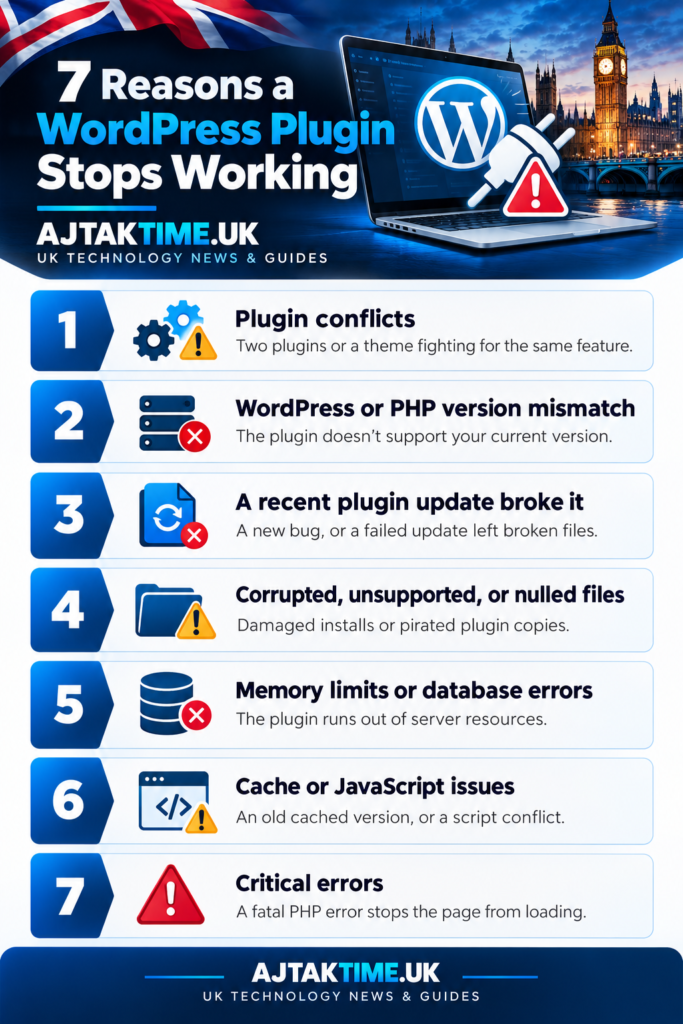
A plugin conflict can appear in different ways depending on the affected components.
Common symptoms include:
- The WordPress dashboard displays an error after activating a plugin.
- A contact form stops submitting or displaying correctly.
- Buttons, menus, sliders, or other interactive elements stop working.
- The website layout changes unexpectedly.
- The WordPress editor fails to load or save content.
- Two plugins produce duplicate features or unexpected output.
- The website becomes slower after installing or updating a plugin.
- WordPress displays a critical error or a PHP fatal error.
- A plugin feature stops working after a WordPress, theme, or PHP update.
If the issue started immediately after a plugin installation or update, that change is a useful starting point for your investigation.
Before You Start: Protect Your Website
Before disabling plugins or changing website files, take a few precautions.
Create a backup. Make sure you have a recent backup of both your website files and database. If your website handles orders, registrations, or user submissions, consider how you will preserve new data during testing.
Record the problem. Note which page is affected, what action triggers the issue, and when the problem first appeared.
Check recent changes. Identify recently installed or updated plugins, theme changes, WordPress updates, and PHP version changes.
Use a staging website if possible. A staging environment allows you to test changes without disrupting visitors. If your hosting provider offers staging, use it for potentially disruptive troubleshooting.
Avoid disabling important security, payment, backup, or membership plugins on a live website unless you understand the risks and have a safe testing plan.
Method 1: Identify the Plugin Causing the Conflict
The most reliable starting point is to test whether a plugin is responsible for the issue.
Step 1: Reproduce the problem
Open the affected page and repeat the action that causes the error.
For example, try submitting the form, opening the editor, saving a post, or using the feature that stopped working.
Record the exact behavior. A screenshot or error message may help you compare results during testing.
Step 2: Review recently changed plugins
In your WordPress dashboard, open Plugins and review the installed plugins.
Look for plugins that were recently installed, updated, or reconfigured before the problem began.
If one plugin was changed immediately before the error appeared, test it first. However, do not assume that the most recently updated plugin is necessarily the cause.
Step 3: Deactivate the suspected plugin
If you can safely access the dashboard, deactivate the suspected plugin temporarily.
Return to the affected page and repeat the same action.
If the problem disappears, the plugin may be involved. If the problem remains, reactivate it when appropriate and continue investigating.
A single test is not always conclusive. Some conflicts occur only when two plugins are active together, so you may need to test combinations.
Step 4: Check the result carefully
Verify that the original problem is resolved rather than merely hidden.
Test the relevant functionality on both desktop and mobile where appropriate. Also check whether disabling the plugin has affected other features.
If the plugin is responsible, review its settings, update history, documentation, and compatibility information before deciding whether to replace it.
Method 2: Test Plugins One by One
If you cannot identify the cause, a systematic plugin conflict test can help narrow down the problem.
For safety, perform this process on a staging website whenever possible.
Step 1: Make a list of active plugins
Record the active plugins and the features they provide. This will help you restore the original setup after testing.
Step 2: Deactivate plugins temporarily
On your staging website, deactivate the plugins that are not essential to the test.
Check whether the original problem disappears.
If the problem remains even when ordinary plugins are disabled, the cause may be elsewhere, such as the theme, WordPress core, PHP configuration, or hosting environment.
Step 3: Reactivate plugins individually
Reactivate plugins one at a time. After activating each plugin, repeat the action that previously caused the problem.
If the error returns after a particular plugin is activated, record the result.
Step 4: Test possible combinations
If every plugin works individually but the problem returns when several are active, two or more components may be interacting.
Try combinations that reproduce the issue. Pay particular attention to plugins that modify the same area, such as caching, forms, page building, SEO, or security.
Step 5: Confirm the finding
Repeat the relevant test to make sure the result is consistent.
Once you identify the likely conflict, investigate the affected plugins and their compatibility requirements. Update them, adjust their settings, or contact the developer for a fix.
Important: Do not deactivate every plugin on a busy live website without considering the consequences. Payment processing, user accounts, security, and other essential features may stop working during the test.
Method 3: Use Troubleshooting Tools When Available
Manually disabling plugins can disrupt a live website. If you have access to a suitable troubleshooting tool, it may offer a safer alternative.
For example, the official Health Check & Troubleshooting plugin provides a troubleshooting mode that can help administrators test WordPress with plugins disabled and a default theme enabled for their own session.
This can allow you to investigate certain problems without changing what ordinary visitors see.
The available features and behavior depend on the tool and your WordPress environment. Review the documentation before using troubleshooting mode, and verify the result before changing your production configuration.
You can learn more from the WordPress.org Health Check & Troubleshooting plugin page.
Method 4: Check for Theme Conflicts
Sometimes a plugin appears to be broken when the actual problem comes from the active theme or custom code.
Themes can add scripts, styles, custom functions, and integrations that interact with plugins. A theme update can also introduce a compatibility problem.
How to test your theme
- Create a backup and preferably use a staging environment.
- Ensure that a suitable default WordPress theme is installed.
- Temporarily switch to the default theme.
- Repeat the action that caused the original problem.
- Compare the result with your original theme.
If the problem disappears with the default theme, investigate your active theme, child theme, and custom code.
If the problem remains, the cause may be a plugin conflict or another issue.
Do not delete your active theme during testing. Switching themes can change layouts, menus, widgets, and other website features.
Method 5: Update Plugins and Check Compatibility
Outdated or incompatible code can cause problems after a WordPress or PHP update.
Before updating a plugin, review its compatibility information, changelog, and documentation where available.
Recommended process
- Create a backup.
- Check whether an update is available for the affected plugin.
- Review the release notes for relevant fixes.
- Test the update on staging if possible.
- Verify that the original functionality works after updating.
Keep WordPress, themes, and plugins maintained, but do not update every component simultaneously while diagnosing a conflict. Changing several components at once makes it harder to identify which change resolved or caused the issue.
If a plugin has no available fix, contact its developer or consider a maintained alternative that supports your WordPress environment.
Avoid installing unofficial or modified copies of premium plugins from untrusted websites. They can introduce security vulnerabilities and additional compatibility problems.
Method 6: Check PHP Errors and WordPress Debug Logs
If the website displays a critical error, a blank page, or a message that does not identify the problem, error logs may provide more information.
Start by checking the PHP error logs available through your hosting control panel. Look for fatal errors or exceptions that occur at the time of the problem.
If you need additional information, WordPress debugging can be enabled temporarily.
Enable debugging carefully
Back up wp-config.php before editing it. Locate any existing debugging constants and update them rather than adding duplicate definitions.
For a temporary diagnostic session, the relevant settings may look like this:
define( 'WP_DEBUG', true );
define( 'WP_DEBUG_LOG', true );
define( 'WP_DEBUG_DISPLAY', false );
These definitions belong before the following comment in wp-config.php:
/* That's all, stop editing! Happy blogging. */If the constants already exist, edit the existing definitions. Your hosting environment may also override certain settings, so consult your host’s documentation if logging does not work as expected.
Reproduce the problem, then inspect the log at:
wp-content/debug.log
The log may contain a PHP error, file path, or function name that helps identify the component involved. A path referencing a plugin does not automatically prove that the plugin is the original cause, so review the full error and surrounding context.
After troubleshooting, turn debugging off and secure or remove the log. Do not leave detailed error output visible to public visitors.
For additional guidance, see the official WordPress debugging documentation.
Method 7: Fix Plugin Conflicts When You Cannot Access the Dashboard
A serious plugin error can prevent you from logging in to WordPress. If that happens, you may be able to disable plugins through your hosting file manager or FTP/SFTP.
Make a backup first, especially if you are changing files on a production website.
Step 1: Open your WordPress files
Log in to your hosting control panel and open File Manager, or connect using your supported FTP/SFTP method.
Navigate to the directory containing your WordPress installation.
Step 2: Locate the plugins directory
Open:
wp-content/plugins/
This directory normally contains the installed plugin folders.
Step 3: Temporarily rename the directory
Rename the plugins directory to something like:
plugins.hold
This prevents WordPress from loading plugins from that directory.
Step 4: Test your website
Reload the website and see whether the critical error disappears.
If the website loads, a plugin may be responsible. However, this method disables all ordinary plugins in that directory, so some website features will stop working.
Step 5: Restore the directory and investigate
Rename plugins.hold back to plugins when you are ready to restore the original directory structure.
Then use the appropriate recovery method to identify the problematic plugin. If restoring the folder causes the dashboard to fail again, consult the recovery email, error logs, or your hosting provider’s support.
Do not delete the plugin directory or its contents as a first step. Renaming is reversible and helps preserve your existing files.
Method 8: Check the PHP Version and Hosting Environment
Plugin compatibility is not limited to other plugins. A plugin may depend on PHP functions or behavior that differ between PHP versions.
If the problem started after changing PHP versions, inspect the hosting error logs and verify that your theme and plugins support the active version.
Also consider other possible causes, including:
- PHP memory exhaustion.
- File permission problems.
- Incomplete plugin updates.
- Server resource limits.
- Database connection errors.
- Hosting configuration changes.
Do not switch PHP versions randomly or increase memory limits without evidence. First identify the error, then make a targeted change that is compatible with your hosting environment.
If the error appears to originate from the server rather than WordPress code, your hosting provider may need to investigate.
Method 9: Replace or Remove the Problematic Plugin
If you confirm that a plugin causes the conflict and no suitable fix is available, consider replacing it.
Before doing so, check whether the plugin stores important settings, creates database tables, or controls essential features.
A safe replacement process includes:
- Back up the website and database.
- Review the plugin’s documentation for migration or removal instructions.
- Test the alternative plugin on staging.
- Confirm that it provides the functionality you need.
- Remove the old plugin only after verifying that the replacement works.
- Check the website for missing features or leftover configuration.
Do not choose a replacement based only on its popularity. Consider maintenance, security, compatibility, support, performance, and whether it meets your actual requirements.
If the plugin is essential and the issue appears to be a bug, report it to the developer with a clear description and relevant error details.
How to Prevent WordPress Plugin Conflicts
You can reduce the likelihood of future conflicts by following a consistent maintenance process.
Install plugins from trustworthy sources. Review the developer, documentation, update history, and compatibility details.
Keep your website maintained. Apply appropriate security and compatibility updates, preferably after testing important changes.
Use staging for major changes. Test plugin updates, theme changes, and PHP changes away from the live website whenever possible.
Avoid unnecessary plugins. Keep only the components you need, but remember that plugin quality matters more than the total count.
Maintain regular backups. Store copies separately from your live hosting account and test restoration periodically.
Change one thing at a time. If you update multiple plugins and change your theme simultaneously, diagnosing a new error becomes more difficult.
Monitor error logs. Logs can help identify recurring problems before they cause wider disruption.
Document important changes. Record plugin updates, configuration changes, and the results of troubleshooting.
Frequently Asked Questions
How do I know which WordPress plugin is causing a conflict?
Start by checking recent changes and error logs. Then test suspected plugins individually, preferably on a staging site. If necessary, disable plugins systematically and reactivate them one at a time until the issue returns.
Can two WordPress plugins conflict even if both are updated?
Yes. Updated plugins can still have incompatible features or code interactions. Updates reduce some compatibility risks but do not guarantee that every plugin works correctly with every other plugin, theme, or hosting environment.
Will deactivating a plugin delete its settings?
Deactivation usually stops a plugin from running, but its settings and database data may remain. Permanent data removal depends on the plugin and its uninstall behavior. Check its documentation before deleting it.
Can a plugin conflict cause the WordPress critical error?
Yes. A plugin can trigger a PHP fatal error that causes WordPress to display a critical error message. However, themes, custom code, PHP compatibility, and server issues can produce similar symptoms.
Should I deactivate all plugins to fix a WordPress problem?
Disabling all plugins can be a useful diagnostic test, but it should be done carefully. Use a staging site or an appropriate troubleshooting mode when possible, especially if your live website relies on payments, security, membership, or other essential features.
What should I do if the problem returns after I reactivate a plugin?
Record the exact action that triggers the issue and inspect the error logs. Check for compatibility updates, review plugin settings, and test possible interactions with the theme or other plugins. Contact the developer if the problem persists.
Final Thoughts
WordPress plugin conflicts can be frustrating, but a structured troubleshooting process makes them easier to diagnose.
Start by reviewing recent changes, checking error messages, and testing the most likely plugin. If necessary, use staging, investigate theme compatibility, inspect PHP logs, and disable plugins through your hosting file manager when dashboard access is unavailable.
Always protect your website with a backup before making significant changes. Once you identify the cause, apply a targeted fix, test the affected features, and document the result.
This approach helps you resolve the immediate issue while reducing the risk of creating new problems on your WordPress website.