
Backing up your WordPress website is one of the most important steps you can take to protect your content, design, settings, and business data. A website can stop working after a failed update, a plugin conflict, accidental file deletion, a security incident, or a hosting problem. Without a reliable backup, restoring everything can become difficult and time consuming.
The good news is that you do not need to be an advanced developer to back up a WordPress website. You can use your hosting control panel, a WordPress backup plugin, or a manual method involving your website files and database.
In this guide, you will learn how to back up a WordPress website, where to store your backups, how often to create them, and how to restore your website if something goes wrong.
Why Should You Back Up Your WordPress Website?
A backup is a copy of your website that you can use to recover your content and functionality when the original site is damaged or unavailable.
There are several reasons to create regular backups.
Protection against failed updates: WordPress core, theme, or plugin updates can occasionally introduce compatibility problems. A recent backup gives you a recovery option.
Protection against accidental deletion: You might accidentally remove a page, image, theme file, plugin, or important setting.
Recovery from security incidents: If your website is compromised, a clean backup from before the incident may help you rebuild it. However, you must investigate and fix the security problem before restoring the site to normal operation.
Hosting and server problems: Hardware failures, account problems, and other hosting issues can make website data unavailable.
Website migration: A complete backup provides a useful starting point when moving WordPress to another server or hosting provider.
Safe development and testing: Before changing your theme, editing code, or testing a major plugin, you can create a recovery point.
A backup is not a guarantee against every problem, but a well maintained backup strategy can substantially reduce the risk of permanent data loss.
What Should a WordPress Backup Include?
A complete WordPress backup generally consists of two essential parts: website files and the database.
1. WordPress website files
Your website files contain the components needed to run and display your website.
These include:
- WordPress core files.
- Installed themes and plugins.
- Images, videos, and other uploaded media.
- Custom PHP, CSS, JavaScript, and other files.
- Configuration files such as
wp-config.php. - Server configuration files such as
.htaccess, where applicable.
The wp-content directory is particularly important because it usually contains your installed themes, plugins, uploads, and other site specific content.
2. WordPress database
The database stores most of your website’s content and settings, including posts, pages, comments, user information, menus, and plugin data.
A database backup is commonly exported as an SQL file, sometimes compressed into a format such as GZIP.
Important: Downloading your website files alone does not normally back up your database. Similarly, exporting the database alone does not preserve your uploaded images, theme files, and plugins. You generally need both to restore a complete WordPress website.
For official guidance, read the WordPress backup documentation.
Method 1: Back Up WordPress Using Your Hosting Provider
Many hosting providers offer website backups through their control panels. This is often the simplest method for beginners because the hosting system may handle both the files and the database.
The exact options depend on your hosting provider and plan.
Step 1: Log in to your hosting account
Open your hosting provider’s website and sign in to your account.
Navigate to the section for your website or hosting plan. Look for a feature named Backup, Backups, Restore, or a similar option.
Step 2: Check the available backup points
If automatic backups are enabled, your hosting account may show previously created backup points.
Check the dates and available restoration options. Confirm whether each backup includes the website files, database, or both.
Do not assume that every hosting plan includes the same backup frequency or retention period.
Step 3: Create or download a backup
If your hosting panel offers a manual backup option, follow its instructions to create a new backup.
Some providers allow you to download website files and database backups separately. Others provide a combined backup or restoration point.
If separate downloads are available, save both components and keep them together.
Step 4: Store the backup safely
Download the backup to your computer or another secure location.
If your hosting provider supports external storage, you may also be able to keep a copy in a separate storage account.
Do not rely exclusively on backups stored within the same hosting account as your website. If you lose access to that account, you could lose access to both the website and its backups.
Step 5: Verify the backup
Confirm that the backup files exist, their sizes look reasonable, and the database export is present if it is supposed to be included.
For important websites, perform a test restoration in a staging environment. A backup is only useful if it can be restored successfully.
Method 2: Back Up WordPress Using a Backup Plugin
A backup plugin can simplify the process by creating scheduled backups of your WordPress files and database.
This approach is particularly useful if you want regular backups without manually downloading files every time.
Examples of WordPress backup solutions include UpdraftPlus, BackWPup, and other maintained backup plugins. Compare their current features, storage integrations, backup limits, and restoration procedures before choosing one.
Step 1: Choose a suitable backup plugin
Open your WordPress dashboard and navigate to Plugins, then Add New Plugin.
Search for a reputable backup plugin. Check its recent updates, compatibility, documentation, and support information.
Install only one primary backup solution unless you have a clear reason for using more than one.
Step 2: Install and activate the plugin
Click Install and then Activate.
Open the plugin’s settings page. The exact menu and available features will depend on the plugin you choose.
Step 3: Configure your backup contents
Select the components you want to back up.
For a complete backup, include both:
- Database.
- Website files, including the relevant WordPress directories and uploaded media.
Some plugins allow you to exclude temporary files or cache directories. Only exclude items when you understand their purpose and know that they can be recreated safely.
Step 4: Set a backup schedule
Choose a schedule that matches how frequently your website changes.
For example, a blog that publishes several articles every week may need more frequent database backups than a small website whose content rarely changes.
An online store, membership site, or website that receives frequent user submissions may need frequent backups because losing even a short period of data can be costly.
Make sure the schedule is supported by your hosting resources and plugin configuration.
Step 5: Choose a backup destination
If supported, configure the plugin to store backups in an external location such as a separate cloud storage account.
Keep access credentials secure and enable appropriate account protection.
A backup stored only inside the website’s own directory may be lost if the hosting account is damaged or compromised.
Step 6: Run your first backup
Start a manual backup and wait for the process to complete.
Check whether both files and the database were included. Review any warnings or errors reported by the plugin.
If the backup fails, check available storage, hosting limits, plugin logs, and the provider’s instructions before assuming the backup is complete.
Step 7: Verify the backup
Confirm that the backup is available at its destination and that the plugin recognizes it as a completed backup.
For stronger assurance, test restoring it to a staging website. A successful backup message alone does not prove that every file and database record can be recovered.
Method 3: Create a Manual Backup Using File Manager or FTP
A manual backup is useful if you prefer direct control over your website files or if a backup plugin is not suitable for your environment.
You can use your hosting file manager or an FTP client such as FileZilla, depending on what your hosting provider supports.
Step 1: Locate your WordPress installation
Log in to your hosting control panel and open its file manager, or connect through your supported FTP or SFTP method.
Locate the directory containing your WordPress installation. It may be the main website directory or a subdirectory, depending on how your site was installed.
Make sure you have selected the correct website if your hosting account contains multiple domains or installations.
Step 2: Download your website files
Select the files and folders belonging to the WordPress installation.
Include the relevant WordPress core files, wp-content, wp-config.php, and other required configuration files.
You can download the files directly or create a ZIP archive first if your hosting provider supports it.
If you use an archive, wait for the operation to complete and confirm that the resulting file is available before downloading it.
Step 3: Keep configuration files secure
The wp-config.php file contains database connection details and other configuration values.
Store it securely and do not upload it to a public website or share it in a public support forum.
Anyone who obtains sensitive configuration information may be able to use it to attack your website or database.
Step 4: Confirm the file backup
Check that the downloaded archive or directory contains the expected files.
If your website has a large media library, confirm that the uploads directory is included. Missing uploads can result in broken images and other missing content after restoration.
Remember: This method backs up files, but it does not automatically export the WordPress database. Complete the next method as well.
Method 4: Back Up the WordPress Database Using phpMyAdmin
The database contains your posts, pages, comments, and many settings that are not stored in your downloaded website files.
Exporting the database separately ensures that you have a copy of this information.
Step 1: Open phpMyAdmin
Log in to your hosting control panel and locate phpMyAdmin or the database management tool provided by your host.
Open the database associated with your WordPress installation.
If you are unsure which database belongs to your website, check the database name in your wp-config.php file. Do not share the file or its credentials publicly.
Step 2: Select the correct database
Choose the database used by the WordPress installation you want to back up.
Review the database name carefully, especially if you manage several websites.
Step 3: Open the Export option
Select Export from the database management interface.
The layout can vary depending on the phpMyAdmin version and hosting provider.
For a straightforward backup, the default Quick export method and SQL format are often suitable. More advanced sites or larger databases may require different settings.
Step 4: Export the database
Select SQL as the format if it is not already selected, then start the export.
Your browser should download a file with an SQL extension, or a compressed format if compression is enabled.
Save the file in the same backup folder as your website files. Use a descriptive filename that includes the website and backup date.
Step 5: Verify the database export
Confirm that the downloaded file exists and is not unexpectedly empty.
For larger databases, the export may take some time. If the operation fails, consult your hosting provider’s database backup instructions or use a supported alternative.
For detailed instructions, see the official WordPress database backup guide.
How Often Should You Back Up WordPress?
There is no single schedule that is ideal for every website. The correct frequency depends on how often your content changes and how much data you can afford to lose.
| Website type | Suggested starting point |
|---|---|
| Small website with infrequent changes | Weekly, plus a backup before major changes |
| Active blog or news website | Daily database backups and regular file backups |
| Business website with frequent updates | Daily backups, adjusted for how often important content changes |
| Online store or membership website | Frequent backups based on transaction and user activity, with suitable database recovery options |
These are starting points, not universal rules. A busy online store may need more frequent backups than once a day because losing recent orders or customer changes could be unacceptable.
Create an additional backup before major WordPress, theme, or plugin updates, and before editing important files or database settings.
Keep multiple recovery points when practical so you are not limited to the most recent backup if a problem remains unnoticed for several days.
Where Should You Store WordPress Backups?
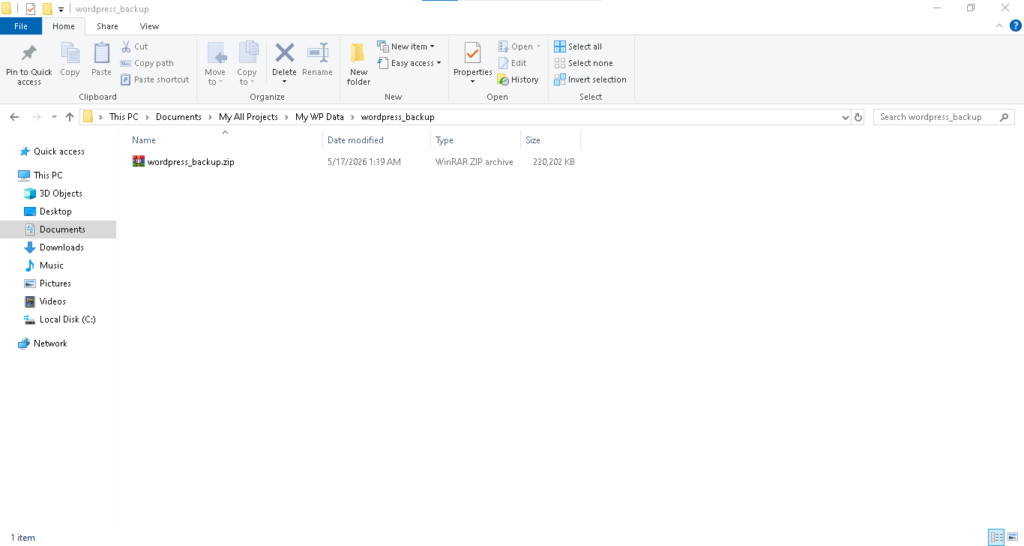
Method 1: Using a Backup Plugin (Easiest & Most Popular)
Using a free or premium WordPress plugin like UpdraftPlus automates the process and lets you store backups in the cloud.
1. Install the Plugin:
• Go to your WordPress Dashboard and click Plugins > Add New Plugin.
• Search for UpdraftPlus, then click Install Now and Activate.
2. Configure Settings (Optional for Automation):
• Go to Settings > UpdraftPlus Backups and open the Settings tab.
• Set a file and database backup schedule (e.g., daily or weekly).
• Choose a remote cloud storage destination like Google Drive, Dropbox, or Amazon S3 and authenticate your account.
3. Run a Manual Backup:
• Navigate back to Settings > UpdraftPlus Backups and click Backup Now.
• Check the boxes to include both your database and your files in the backup, then click Backup Now.
Method 2: Using Your Hosting Provider’s Built-In Tool
Many managed WordPress hosts and control panels offer one-click or automated backups.
1. Log into your hosting dashboard or control panel (such as SiteGround Site Tools, cPanel, or Cloudways).
2. Locate the Backups or Backup Manager section.
3. Click Create Backup or Take Backup Now to generate a full snapshot of your site.
4. Download or retain the backup archive directly from your host.
Method 3: Manual Backup (via cPanel & phpMyAdmin)
If you prefer not to use a plugin, you can manually export your database and download your files.
1. Back Up the Database:
• Open phpMyAdmin from your cPanel dashboard.
• Select your WordPress database from the left-hand sidebar (you can verify the name in your wp-config.php file).
• Click the Export tab at the top, choose the Quick or Custom method (checking Add DROP TABLE), and click Go to download the .sql file to your computer.
2. Back Up the Website Files:
• Open File Manager in cPanel or connect via an FTP/SFTP client like FileZilla.
• Navigate to your website’s root directory (usually public_html).
• Select all files and folders, compress them into a .zip or .tar.gz archive, and download the archive to your local computer.
Best Practices for Backups
• Store Off-Site: Never keep your only backup on the same server as your live website; save copies to cloud storage or your local computer.
• Maintain Multiple Versions: Keep at least three recent backup sets from different dates.
• Test Your Backups: Periodically test restoring a backup on a staging site to ensure the files and database aren’t corrupted.
Watch a step-by-step video guide on how to back up and restore a WordPress site using a free plugin:
6:34
How to Backup & Restore Your WordPress Website for FREE
1 year ago
YouTube · THEWPBRO
Would you like help with restoring a backup, moving your site to a new host, or choosing a cloud storage provider?
•
Elementor
How to Backup Your WordPress Site (5 Easy Ways) – Elementor
30-Jun-2026 — Part 1: Backing Up Your WordPress Files. Log in to cPanel and open the File Manager. Navigate to your website’s root directory, wh…
•
YouTube·Darrel Wilson
How To Backup Your WordPress Website (Without A Plugin)
10-Feb-2025 — How To Backup Your WordPress Website (Without A Plugin) company hostinger offers free automated daily backups that you can easily …
2m
•
WordPress Developer Resources
Backups – Advanced Administration Handbook
Recommended backup and restore order * Backup (typical order): Back up the database first, then back up the WordPress files.
The location of your backups matters almost as much as creating them.
Consider keeping copies in separate locations:
Your computer: A local copy gives you access to the backup if your hosting account becomes unavailable.
External storage: A separate cloud storage account or other secure storage destination can protect against problems affecting your main computer or hosting account.
Hosting provider storage: Hosting backups can be convenient for quick restoration, but should not be your only recovery option.
Follow a simple principle: keep at least one backup copy separate from the live website and hosting account.
Use strong passwords and appropriate account security. Encrypt sensitive backup archives where practical, especially when they contain user information or configuration files.
Also establish a retention policy. Keeping multiple backup points can help you recover from problems that were not discovered immediately, but old copies should be stored and deleted according to your security and retention requirements.
How to Restore a WordPress Website from a Backup
Creating backups is only half of the process. You should understand how restoration works before you need it during an emergency.
The exact steps depend on the backup method, hosting provider, and whether you are restoring to the original website or a different server.
Step 1: Identify the problem
Before restoring, determine what went wrong and whether a complete restoration is necessary.
If a single plugin caused an error, a targeted fix may be safer than rolling back the entire website.
If the website was compromised, do not immediately restore a backup without investigating the cause. Otherwise, the same vulnerability could allow the site to be compromised again.
Step 2: Choose a suitable backup point
Select a backup created before the problem began.
For a website with frequent content updates, consider what data may be lost when reverting to an older database.
If possible, preserve a copy of the current website before making significant restoration changes. It may help with troubleshooting or recovering recent content.
Step 3: Restore the website files
Use your backup plugin or hosting restoration tool if it supports the backup format.
For a manual restoration, upload the required files to the correct website directory, following your host’s instructions.
Take care not to overwrite the wrong website or directory.
Step 4: Restore the database
If your backup includes a database export, import it into the appropriate database using the supported database management tool.
Confirm that the correct database is selected before importing. Importing into the wrong database can damage another website or application.
If the database name, username, password, or host has changed, the connection settings in wp-config.php may need to be updated.
Step 5: Test the restored website
Check the homepage, important articles, images, menus, forms, dashboard, and other essential features.
If the site was restored to a different location or domain, additional configuration may be needed.
Do not consider the restoration complete until the website has been tested and is functioning correctly.
For a complicated migration or failed restoration, consult your hosting provider or a qualified WordPress developer rather than repeatedly overwriting files or databases.
Common WordPress Backup Mistakes to Avoid
Backing up only website files
A file backup alone usually cannot restore the database content. Make sure you have both components for a complete backup.
Keeping backups only on the same server
If the hosting account becomes unavailable or compromised, the backup may be affected as well. Keep an independent copy.
Never testing a restoration
A backup may be incomplete, corrupted, or incompatible with the restoration process. Test it periodically in a safe staging environment.
Ignoring backup errors
A scheduled task may fail because of storage limits, timeouts, permissions, or other problems. Review logs and confirm successful completion.
Keeping only one backup
If an issue is discovered days after it begins, the latest backup may already contain the problem. Keep multiple recovery points where practical.
Forgetting to back up before updates
A backup made immediately before a major change gives you a recent recovery point if the update causes problems.
Exposing backup files publicly
Database exports and backup archives can contain sensitive data. Store them in secure locations and ensure that public visitors cannot download them.
Frequently Asked Questions
Can I back up WordPress without a plugin?
Yes. You can download the website files through your hosting file manager or FTP/SFTP and export the database through phpMyAdmin or another supported database tool. You need both components for a typical complete backup.
Does WordPress automatically back up my website?
WordPress core does not provide a complete automatic backup system for every self hosted website. Your hosting provider or a backup plugin may offer automated backups, so check which features are available and enabled for your site.
Is a database backup enough?
No. A database backup preserves content and many settings, but does not normally include your themes, plugins, uploaded media, or all website configuration files. Back up both the database and website files.
How long should I keep WordPress backups?
Retention depends on your website’s activity, storage capacity, and recovery requirements. Keep multiple recovery points when possible, and retain them long enough to cover the period in which problems might be discovered. Consider privacy, security, and applicable retention requirements when storing old backups.
Can I restore WordPress on another hosting provider?
Yes, provided you have the necessary files and database and the destination environment supports your website. You may need to update database credentials, domain settings, and other configuration values. Domain changes can also require careful URL replacement and testing.
How do I know if my backup works?
Confirm that the files and database export exist, review any backup errors, and perform a test restoration in a staging environment. A successful download alone does not guarantee that the entire website can be restored.
Final Thoughts
Backing up a WordPress website is a straightforward but essential part of website maintenance. You can use your hosting provider’s tools, a reputable backup plugin, or a manual method to protect your files and database.
For a dependable strategy, automate backups where appropriate, keep copies outside your main hosting account, maintain multiple recovery points, and test restoration periodically.
Most importantly, create a fresh backup before major updates, migrations, or risky changes. A little preparation now can save considerable time and help protect your website when something goes wrong.