Seeing a 403 Forbidden error in WordPress can feel like your site has suddenly locked you out. The good news is that a 403 is specific: the server understood your request, but it is refusing to serve it. That means there is usually a rule, permission or block you can find and fix. This guide walks through the fixes in order, from the quickest checks to the more technical ones, so you can fix the right layer instead of changing everything at once.
Quick Answer
To fix a 403 Forbidden error in WordPress, first find which layer blocked the request — the CDN/firewall, the server rules in .htaccess, file permissions, or a security plugin. Then fix only that layer: regenerate .htaccess, reset folders to 755 and files to 644, or deactivate the blocking plugin. Never set permissions to 777.
If you only have a few minutes, work through the fixes in the order below. Start with the most recent change, rule out your browser and VPN, regenerate .htaccess, check permissions, and only then dig into plugins, firewalls and server logs. Testing one change at a time makes it much easier to know what actually fixed the problem.
Key Takeaways
- A 403 means the server understood the request but refuses access.
- The five main causes are file permissions, a broken .htaccess file, a security plugin or firewall rule, a blocked IP address, and a missing index.php file.
- The pattern tells you the cause: wp-admin only usually points to a security rule, a whole site failing after a migration usually points to permissions or ownership, and one folder failing often means a missing index file.
- Correct permissions are 755 for folders and 644 for files. Never use 777.
- Always back up before you change files, permissions or plugins.
First, Diagnose: Which Layer Said No?
Before you change anything, it helps to understand where a 403 can come from. A request passes through several layers before WordPress even loads. Any one of them can say no.
- CDN or firewall: Services such as Cloudflare can block a request before it reaches your host.
- ModSecurity or WAF: Your host may run a web application firewall that blocks suspicious-looking requests.
- Web server rules: Apache reads rules from .htaccess, while Nginx uses server configuration instead.
- Security plugin: A WordPress security plugin can block IPs, countries, login attempts or specific URLs.
- WordPress core: WordPress itself can deny access to certain files or areas, although many 403s happen before WordPress loads.
Layers 1 to 3 block the request before WordPress loads, so deactivating a plugin will not fix those cases. That is why guessing is risky. A plugin fix will not help if the block is in .htaccess, and regenerating .htaccess will not help if Cloudflare is blocking your IP.
Ask yourself three questions first:
- Is it only you, or everyone? Test in an incognito window or on your phone using mobile data. If other people can open the site, your IP may be blocked.
- Where does it happen? Is it the whole site, only wp-admin, one page, the uploads folder, or a form submission?
- What changed just before? A new plugin, a migration, a permission change, a firewall rule or a WordPress update are all clues.
Write down your answers. They will point you to the right fix much faster than trying everything at random.
What Is a 403 Forbidden Error?
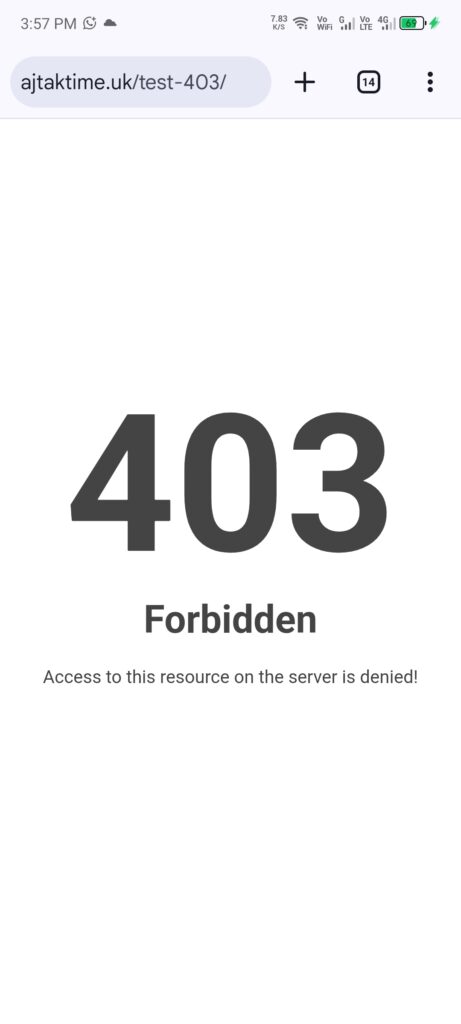
A 403 Forbidden error is an HTTP status code that means the server understood your request but refuses to authorize it. In plain English, the server is saying: I heard you, but you are not allowed to see this.
It is different from other common errors:
- 401 Unauthorized means authentication is needed first, such as logging in.
- 404 Not Found means the page or file does not exist at that address.
- 500 Internal Server Error means something failed on the server, often a PHP error or misconfiguration.
- 403 Forbidden means the resource may exist, but access is being denied.
Not every 403 is a problem. For example, a 403 when you try to open wp-config.php directly in a browser is normal and correct. That file should never be served to visitors. The problem is when a 403 blocks pages, images or admin areas that should be accessible.
Before You Start
Do a backup first. If a fix makes things worse, a backup lets you roll back safely. Follow our guide to back up a WordPress website before you edit server files.
Also note what changed recently, and make sure you have File Manager or FTP access to your site. You will need it to rename .htaccess, reset permissions or deactivate a plugin when wp-admin is blocked. After every fix, reload the page and test again before moving to the next step.
Fix 1: Undo the Most Recent Change
The fastest fix is often to undo whatever changed right before the error appeared. Did you install or update a plugin? Activate a new theme? Edit .htaccess? Change file permissions? Migrate the site to a new host?
If you can still access wp-admin, deactivate the most recently installed plugin first. If you cannot, rename its folder in wp-content/plugins using FTP or File Manager. If the error started after a migration, check permissions and ownership first, because those are the most common migration problems. If it started after editing .htaccess, restore your backup copy of that file.
Undo one change, reload, and test. If the site works again, you have found the cause. If not, put that change back and move to the next fix.
Fix 2: Rule Out Browser, Cache and VPN
Sometimes the block is not really about your site at all. Your browser cache, a VPN, or even a mistyped URL can produce a confusing error.
- Hard refresh the page with Ctrl+Shift+R, or Ctrl+F5, to bypass cached files.
- Open the site in an incognito or private window. If it works there, your cache, cookies or an extension may be involved.
- Turn off any VPN and try again. Some VPN exit IPs are blocked by firewalls.
- Check the URL carefully for typos, missing slashes or an old bookmark pointing to the wrong address.
- Try a different network, such as your phone on mobile data, to see whether the block follows your IP.
If the site loads fine in incognito or on your phone, the problem is likely an IP block or local cache rather than a broken site. Keep that in mind as you continue.
Fix 3: Regenerate the .htaccess File
A corrupted or badly edited .htaccess file is one of the most common causes of a 403 on Apache servers. The fix is to rename the current file and let WordPress create a fresh one.
- Connect with FTP or open File Manager in your hosting panel.
- Find the .htaccess file in your site root. If you cannot see it, enable the option to show hidden files, because .htaccess starts with a dot.
- Download a backup copy to your computer first.
- Rename the file to .htaccess-old.
- Reload your site. If it loads, the old .htaccess was the problem.
- Go to Settings > Permalinks in wp-admin and click Save Changes. WordPress will generate a new .htaccess file with the correct rules.
The default WordPress .htaccess code should look like this:
# BEGIN WordPress
<IfModule mod_rewrite.c>
RewriteEngine On
RewriteRule .* - [E=HTTP_AUTHORIZATION:%{HTTP:Authorization}]
RewriteBase /
RewriteRule ^index\.php$ - [L]
RewriteCond %{REQUEST_FILENAME} !-f
RewriteCond %{REQUEST_FILENAME} !-d
RewriteRule . /index.php [L]
</IfModule>
# END WordPress
If your site uses a security plugin, it may add its own rules between the BEGIN and END WordPress markers or in separate sections. That is fine, as long as the file is valid. If you manually edited .htaccess and are unsure, compare it with the default above.
Note: Nginx does not use .htaccess. If your host runs Nginx, .htaccess changes will have no effect, and you should skip this fix and look at server configuration, permissions or your firewall instead.
Fix 4: Reset File and Folder Permissions to 755/644
Wrong permissions are another very common cause, especially after a migration or a manual file upload. The server needs permission to read your files and to enter your folders.
| Item | Correct permission | Notes |
|---|---|---|
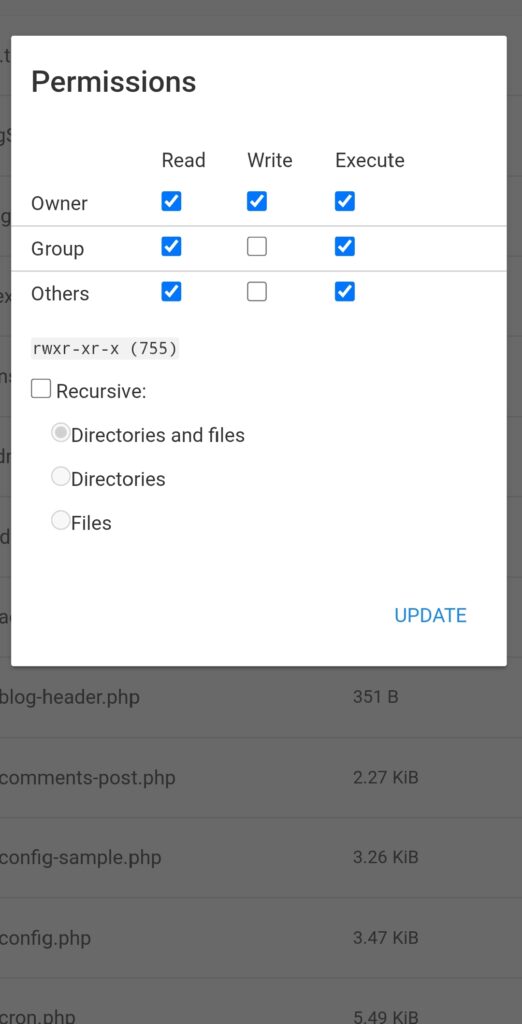
| Folders | 755 | Owner can read, write and execute; others can read and execute. |
| Files | 644 | Owner can read and write; others can read only. |
| wp-config.php | 440 or 400, if your host supports it | Extra protection for your most sensitive file. |
Never set permissions to 777. A 777 permission makes files and folders writable by everyone, which is a serious security risk. It may appear to fix a 403, but it leaves your site exposed. Use 755 for folders and 644 for files instead.
To fix permissions in File Manager:
- Open File Manager in your hosting panel and go to your site root.
- Select the folders and files, right-click, and choose Change Permissions.
- Set folders to 755 and files to 644. Many panels let you apply recursively, but be careful: apply folder permissions to folders and file permissions to files.
- Reload the site and test.
To fix permissions with FileZilla:
- Connect to your site with FTP.
- Right-click a folder and choose File Permissions.
- Enter 755 for folders, then repeat with 644 for files.
- Test the site after each change.
If you are not sure which files were changed, resetting the whole site to 755/644 is the standard safe starting point on most shared hosting.
Fix 5: Check for a Missing Index File
Your site needs an index.php file in its root folder. If it is missing, the server may return a 403 instead of a proper page, because it has no default file to serve.
Open your site root in File Manager or FTP and confirm that index.php exists there. Also check for a common migration mistake: unzipping a backup into a subfolder, so your files end up in something like public_html/wordpress/ instead of directly in public_html/. If that happened, move the files up one level or point your domain at the correct folder.
While you are there, check that other key folders such as wp-admin and wp-content exist and contain their files. A missing or empty folder can also trigger a forbidden error.
Fix 6: Deactivate Plugins, Especially Security Plugins
Security plugins protect your site, but they can also block legitimate requests. A plugin might block your IP after failed logins, block a whole country, or deny access to wp-admin or XML-RPC in a way that causes a 403.
If you can still access wp-admin, go to Plugins and deactivate security plugins first, then test the site. Reactivate them one by one to find the culprit. Our guide on how to fix WordPress plugin conflicts explains this process in more detail.
If wp-admin is blocked, you can deactivate a plugin without logging in:
- Connect with FTP or File Manager.
- Go to wp-content/plugins.
- Rename the plugin folder, for example from wordfence to wordfence-off.
- Reload the site. If it works, that plugin was blocking you.
- Rename the folder back when you are ready to investigate its settings, or remove the plugin and reinstall it cleanly.
Start with security, firewall, login-protection and caching plugins, as those are the most likely to block requests.
Fix 7: Check Firewall, ModSecurity, CDN and IP Blocks
If the site works for everyone except you, your IP address may be blocked. Check your own IP against the block lists in your security plugin, your hosting panel and your CDN.
- Security plugin: Look for blocked IPs or locked-out users and whitelist your current IP.
- Hosting panel: Check IP Blocker or similar tools and remove your IP if it is listed.
- ModSecurity: Some hosts run ModSecurity rules that can misfire. Ask your host to whitelist the specific rule ID that is blocking you rather than disabling ModSecurity site-wide, which would weaken your security.
- Cloudflare: Error 1020 usually means a custom firewall rule blocked the request. Check your Cloudflare firewall rules and security events for your IP.
- Hotlink protection: If only images return a 403, hotlink protection may be blocking them when they are embedded on other sites. Check your host or CDN settings.
Your IP can change, especially on mobile data or with a VPN, so a block that worked yesterday may affect a new address today. Note your current IP before contacting support.
Fix 8: Fix File Ownership After a Migration
After moving a site between servers, files can end up owned by the wrong user. The web server then cannot read them, even if permissions look correct.
On shared hosting, you usually cannot fix ownership yourself. Contact your host and ask them to correct file ownership for your account. This is a common post-migration fix and they should be able to do it quickly.
On a VPS where you have root or sudo access, you can fix ownership from the command line. A common example on Debian or Ubuntu is:
sudo chown -R www-data:www-data /var/www/your-siteWarning: do not copy that command blindly. The correct web-server user and path depend on your setup. It might be www-data, apache, nginx or a hosting-specific user, and your site might live in a different folder. Check your server configuration or ask your host or server admin before running chown.
Fix 9: Read the Error Log
When the earlier fixes do not work, the error log will usually tell you exactly which rule blocked the request. In your hosting panel, look for Error Logs, or check the Apache or Nginx error log via FTP or SSH.
Common Apache log lines and what they mean:
- AH01630 — a deny rule in .htaccess or the server configuration blocked the request. Fix: review and regenerate .htaccess, and check for deny rules.
- AH00035 — access to the directory was denied because the folder is missing execute permission. Fix: set folders to 755.
- AH00132 — the file is not readable, often due to permissions or ownership. Fix: set files to 644 and check ownership.
Copy the exact log line, including the timestamp and file path, when you contact your host. It saves a lot of back-and-forth.
Still Stuck? Send Your Host This Message
If you have worked through the steps above and still see a 403, send your host a clear support message. You can copy and adapt this:
Hello, my WordPress site is returning a 403 Forbidden error. Please check the error log for the exact rule blocking the request, check whether my IP is blocked by ModSecurity or a firewall, and confirm that file ownership and permissions are correct after my recent changes. The error happens on [whole site / wp-admin / a specific page] and started after [what changed]. Thank you.
Include your domain, the URL that fails, the time it happened and your current IP address. That gives support everything they need to check the right logs.
How to Stop a 403 Error Coming Back
Once the site is working again, take a few minutes to prevent a repeat:
- Keep a fresh backup, and know how to restore a WordPress backup if something goes wrong again.
- Change one thing at a time when updating plugins, themes or server settings.
- Keep permissions at 755 for folders and 644 for files, and never use 777.
- Review security plugin settings after updates, especially IP blocking and login protection.
- After a migration, always check permissions, ownership and the location of index.php.
- Keep a copy of your working .htaccess file somewhere safe.
Frequently Asked Questions
What does 403 Forbidden mean in WordPress?
It means the server understood your request but refuses to allow access to that page or file. In WordPress the usual causes are incorrect file permissions, a corrupt .htaccess file, a security plugin, a firewall rule, or a blocked IP address.
What is the fastest way to fix a 403 error in WordPress?
First check whether only you are affected and what changed just before the error. Then, in order: regenerate .htaccess via Settings → Permalinks, reset permissions to 755 for folders and 644 for files, and deactivate your security plugin to test it. One of these three fixes resolves most WordPress 403 errors.
Why do I get a 403 error on wp-admin but the front end works?
Because something is specifically protecting the login area: usually a security plugin block or IP allowlist, a firewall/ModSecurity rule on wp-login.php, or a deny rule in .htaccess for the wp-admin folder. Check Fix 6 and Fix 7 first — file permissions are rarely the cause of an admin-only 403.
Should I set file permissions to 777 to fix a 403?
No. 777 makes your files writable by anyone and is a serious security risk; many hosts block it or return a 500 error instead. The correct WordPress permissions are 755 for folders and 644 for files. If those do not fix it, the cause is elsewhere — a rule, a plugin, or file ownership.
Can a plugin cause a 403 Forbidden error?
Yes. Security, firewall, redirect and caching plugins are a common cause because they write .htaccess rules and block IP addresses. Rename the plugin’s folder in wp-content/plugins via File Manager or FTP to deactivate it without wp-admin, then reload to test.
Why did a 403 error appear after migrating my WordPress site?
Migrations commonly change file ownership and permissions when files are copied or restored under a different user, so the web server can no longer read them even though WordPress itself is intact. Reset permissions to 755/644 and ask your host to correct file ownership if that does not fix it.
Is a 403 error my fault or my host’s?
Either is possible, and the error log decides. A 403 caused by .htaccess, permissions or a plugin is in your account and fixable by you. A 403 caused by a server firewall rule, server configuration (especially on Nginx), or file ownership on shared hosting needs your host — send them the log line and the message in this guide.
Does clearing cache fix a 403 error?
Only if the 403 is a cached page in your browser or you were seeing a stale result after fixing the real cause. Clearing cache is a good 2-minute check (Fix 2), but it does not fix a server-side permission, .htaccess or firewall block.
Conclusion
A 403 Forbidden error in WordPress is frustrating, but it is also informative. Find which layer said no — CDN, firewall, server rules, permissions or a plugin — and fix only that layer. Work through the fixes in order, test after each change, and never use 777. In most cases, regenerating .htaccess, resetting permissions to 755/644, or removing a blocking rule will get your site back.