
Staying organised can be challenging when you have university assignments, work deadlines, personal responsibilities, and multiple projects to manage. The right productivity tools can help you plan your day, organise notes, collaborate with others, and complete tasks without spending money on expensive subscriptions.
Fortunately, several productivity apps offer useful free plans for students, freelancers, remote workers, and professionals in the UK. Some focus on task management, while others help with note taking, document creation, project planning, time tracking, or graphic design.
In this guide, we compare the best free productivity tools for students and professionals in the UK, explain what each one does best, and show you how to build a practical productivity system without paying for unnecessary software.
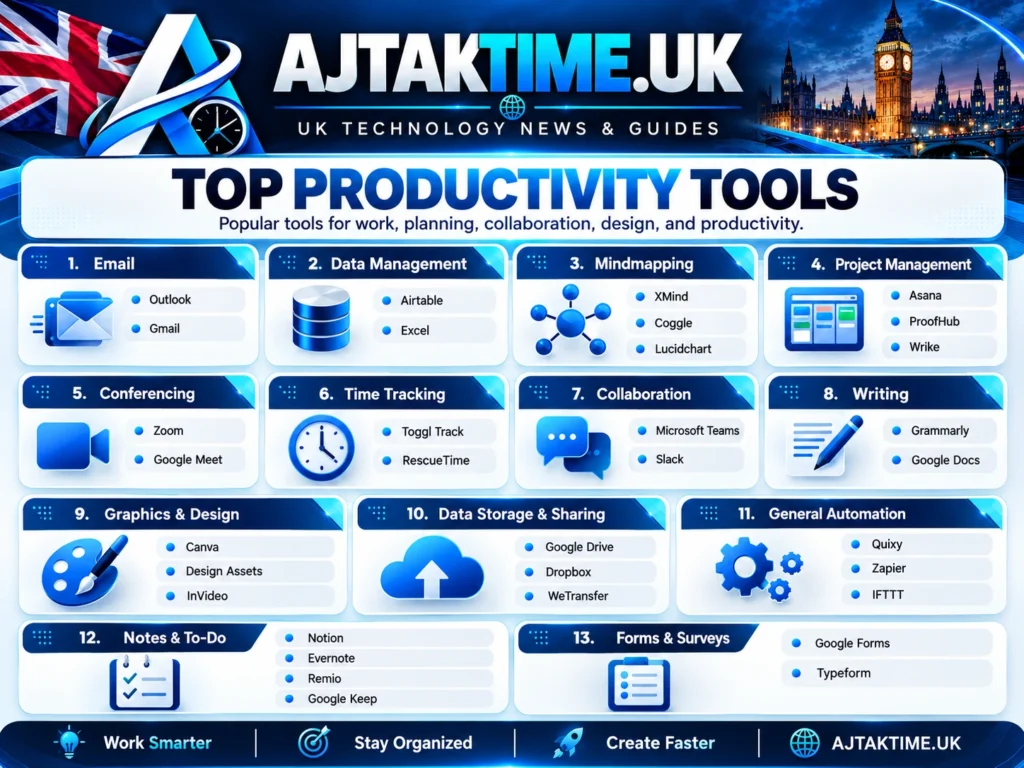
Quick Comparison: Best Free Productivity Tools
| Tool | Best for | Free option |
|---|---|---|
| Google Docs | Writing assignments and documents | Yes |
| Google Calendar | Scheduling classes, meetings, and deadlines | Yes |
| Microsoft To Do | Personal tasks and reminders | Yes |
| Notion | Notes, study planning, and project organisation | Yes |
| Trello | Visual project management | Yes, with limits |
| Todoist | To do lists and task management | Yes, with limits |
| Microsoft OneNote | Lecture notes and research | Available at no cost |
| Canva | Presentations and visual content | Yes, with limits |
| Clockify | Tracking work and study time | Free plan available |
| Obsidian | Personal notes and knowledge management | Free for personal use |
Free features and plan limits can change. Check the official websites before choosing a tool for long term use.
1. Google Docs: Best for Assignments and Documents
Google Docs is a practical choice for students writing essays, preparing reports, and collaborating on group assignments. Professionals can also use it for proposals, meeting notes, drafts, and everyday documents.
Key features
- Create and edit documents in a browser.
- Share files with other people.
- Collaborate on documents in real time.
- Leave comments and suggestions.
- Access documents across supported devices.
- Save work online through a Google account.
Who should use it?
University students, teachers, freelancers, office workers, and anyone who regularly creates written documents.
How to use it effectively
Create separate folders for each subject, client, or project. Use descriptive file names and share documents with the appropriate permissions. For important assignments, keep a clear record of drafts and submission dates.
Official website: Google Docs
2. Google Calendar: Best for Planning Your Day
Google Calendar helps you organise classes, appointments, work shifts, deadlines, and personal commitments in one place.
Instead of remembering every deadline, you can create events and reminders to help you stay on schedule.
Key features
- Schedule classes and meetings.
- Create recurring events.
- Add reminders and event details.
- Share calendars where appropriate.
- View your schedule across supported devices.
- Coordinate appointments with other people.
Best use for UK students and professionals
Students can create a separate calendar for lectures, coursework, revision, and examinations. Professionals can use different calendars for client meetings, project deadlines, and personal commitments.
Try scheduling focused work sessions around your existing commitments rather than filling every available hour.
Official website: Google Calendar
3. Microsoft To Do: Best for Simple Task Management
Microsoft To Do is a straightforward way to manage everyday tasks without needing a complicated project management system. Microsoft confirms that it is free with a personal Microsoft account. <Cite refs={[“turn378446search8”]}/>
Key features
- Create multiple task lists.
- Add due dates and reminders.
- Break larger tasks into smaller steps.
- Organise work using separate lists.
- Review daily priorities with the My Day feature.
- Use it alongside supported Microsoft services.
How students can use it
Create lists such as:
- University assignments
- Exam revision
- Reading list
- Part time work
- Personal errands
Professionals can create separate lists for client work, meetings, follow ups, and weekly objectives.
Official website: Microsoft To Do
4. Notion: Best for All in One Organisation
Notion combines notes, documents, databases, project trackers, and personal planning features in a flexible workspace. It can be useful if you want to organise several areas of your life in one place.
The free plan supports individual use, while eligible university students and educators can apply for Notion’s free education plan. Eligibility requirements apply. <Cite refs={[“turn378446search0″,”turn378446search3”]}/>
Key features
- Organise notes and study materials.
- Create project and assignment trackers.
- Build personal knowledge databases.
- Maintain reading lists and research notes.
- Create reusable templates.
- Share selected pages with other people.
Example student workspace
A simple student workspace could include:
- A dashboard for the current semester.
- A database of assignments and due dates.
- Separate pages for each subject.
- Revision notes and reading lists.
- A weekly study plan.
Professionals can use similar structures for project documentation, content calendars, meeting notes, and client task lists.
Is Notion completely free?
Notion offers a free plan for individuals, but some features and collaboration options are restricted. Its education plan has separate eligibility conditions, so check the official terms before assuming you qualify.
Official website: Notion
5. Trello: Best for Visual Project Management
Trello uses boards, lists, and cards to help you visualise the progress of a project. It is particularly useful when you prefer seeing tasks move through stages rather than managing everything in a long checklist.
Trello’s free plan currently includes up to 10 boards per workspace and up to 10 collaborators, alongside other feature limits. <Cite refs={[“turn253860search1”]}/>
Key features
- Create boards for different projects.
- Organise tasks into lists.
- Add checklists and due dates to cards.
- Assign tasks to collaborators.
- Track project progress visually.
- Use supported integrations called Power Ups.
Example: Managing a university assignment
Create a board named Assignment Planner and add these lists:
- To Do
- Researching
- Writing
- Editing
- Submitted
Create a card for each assignment and move it between lists as the work progresses.
Professionals can use the same approach for website development, marketing campaigns, content production, and team projects.
Official website: Trello
6. Todoist: Best for To Do Lists and Deadlines
Todoist is designed for people who want a focused way to manage tasks, deadlines, and reminders without building an entire workspace.
Its free plan includes five personal projects, task reminders, list and board layouts, and three filter views. More advanced features are available on paid plans. <Cite refs={[“turn378446search12”]}/>
Key features
- Create and organise tasks.
- Add due dates and reminders.
- Break large tasks into smaller actions.
- View tasks in list or board layouts.
- Organise work into separate projects.
- Connect with supported email and calendar services.
Who is it best for?
Todoist is suitable for students balancing assignments and revision, freelancers managing client work, and professionals handling multiple deadlines.
For example, a task such as “Complete research for Friday’s assignment” can include a due date and smaller steps for finding sources, taking notes, and preparing an outline.
Official website: Todoist
7. Microsoft OneNote: Best for Lecture Notes and Research
Microsoft OneNote is a digital notebook that lets you organise notes into notebooks, sections, and pages. It is useful for students who need to keep lecture notes, revision material, and research in an organised structure.
Key features
- Organise notes by subject or project.
- Combine typed notes with other supported content.
- Keep related material in separate notebooks.
- Search your notes.
- Access notes across supported devices.
- Share notebooks where supported.
How to organise your notes
Create a notebook for each academic year or major project. Within each notebook, create sections for individual subjects or workstreams, then use separate pages for lectures, meetings, and research.
This structure can make it easier to find information when preparing an assignment or reviewing previous work.
Official website: Microsoft OneNote
8. Canva: Best for Presentations and Visual Content
Canva is a browser based design platform for creating presentations, posters, infographics, study materials, CVs, and social media graphics.
Its Free plan includes design tools, templates, exports, and 5 GB of cloud storage. Some premium assets and features require a paid plan. <Cite refs={[“turn253860search0”]}/>
Key features
- Create presentations and posters.
- Design infographics and visual study notes.
- Prepare CVs and portfolio materials.
- Make diagrams and educational resources.
- Export supported designs as PDF, JPG, or PNG.
- Collaborate on supported designs.
How students and professionals can benefit
Students can use Canva to make revision summaries, presentations, and project posters. Professionals can use it for reports, proposals, visual explainers, and marketing materials.
Choose free templates and assets when working on a zero budget. Before publishing a design commercially, review the applicable asset licensing terms.
Official website: Canva
9. Clockify: Best for Tracking Study and Work Time
Clockify is a time tracking tool that can help you understand how much time you spend on different tasks. It is useful for freelancers, remote workers, and students who want to review their study habits.
Key features
- Track time spent on activities.
- Organise tracked time by project.
- Review time entries and reports.
- Compare planned work with actual time spent.
- Track billable time where relevant to your work.
How to use it
Create projects for your main activities, such as revision, assignments, client work, and administration. Start a timer when you begin a task and stop it when you finish.
After a week, review your records to identify activities that take longer than expected.
Do not treat time tracking as a measure of personal worth. The goal is to understand your workload and improve planning, not to make every minute productive.
Check the current free plan and feature limits before relying on any specific reporting or team feature.
Official website: Clockify
10. Obsidian: Best for Personal Knowledge Management
Obsidian is a note taking application built around locally stored Markdown files. It is useful for people who want to connect research notes, ideas, reading notes, and long term reference material.
Obsidian is free for personal use, while optional services such as official syncing and publishing have separate costs.
Key features
- Write notes in Markdown.
- Store notes as local files.
- Link related notes together.
- Build a connected personal knowledge library.
- Organise notes into folders.
- Use community plugins if they suit your needs.
Who should use it?
Students conducting long term research, writers collecting ideas, developers documenting technical knowledge, and professionals building a personal reference library may find Obsidian useful.
Because files are stored locally, you should still maintain backups. Do not assume your notes automatically sync across all devices without configuring a suitable method.
Official website: Obsidian
Which Productivity Tool Should You Choose?
The best choice depends on the work you need to do. You do not need to install every app in this list.
| Your main requirement | Recommended starting point |
|---|---|
| Write assignments and reports | Google Docs |
| Plan classes and meetings | Google Calendar |
| Manage everyday tasks | Microsoft To Do |
| Combine notes and planning | Notion |
| Manage projects visually | Trello |
| Keep a focused task list | Todoist |
| Organise lecture notes | OneNote |
| Design presentations | Canva |
| Understand how you spend time | Clockify |
| Build a connected library of notes | Obsidian |
For most people, two or three well chosen tools are enough. Start with your biggest productivity problem and add another tool only when you have a clear reason.
A Free Productivity Setup for UK Students
If you are a student at a UK college or university, start with this simple setup.
Step 1: Organise your assignments
Use Google Docs for written work and OneNote or Notion for notes and research.
Step 2: Record every deadline
Add assignment submission dates, examination dates, and important appointments to Google Calendar.
Step 3: Create a task list
Use Microsoft To Do or Todoist to break assignments into manageable steps. Include research, outlining, drafting, editing, and final submission.
Step 4: Schedule revision sessions
Reserve realistic blocks of time in your calendar for revision. Leave space for breaks, travel, work, and unexpected changes.
Step 5: Review your progress weekly
At the end of each week, check upcoming deadlines, incomplete tasks, and your available time. Adjust your plan instead of simply carrying every unfinished task forward.
Step 6: Check student offers
Some software providers offer education plans for eligible students and educators. Use your genuine institutional email address where required, and verify eligibility through the official provider.
For example, Microsoft offers Microsoft 365 Education to students at eligible institutions, while Notion provides a separate education plan with its own conditions. These offers are not automatically available to every student.
A Free Productivity Setup for Professionals
Professionals, freelancers, and remote workers can also build an effective system without subscribing to multiple apps.
Step 1: Keep your schedule in one calendar
Use Google Calendar or your existing work calendar for meetings, deadlines, and planned work sessions.
Step 2: Track tasks separately
Use Microsoft To Do or Todoist for everyday tasks. If your work involves multiple people or complex projects, consider Trello.
Step 3: Store project information in one place
Use Google Docs, OneNote, or Notion for meeting notes, requirements, project decisions, and documentation.
Step 4: Track time when it serves a purpose
Freelancers who bill by the hour may benefit from Clockify. Other professionals can use it to estimate how long recurring tasks take.
Step 5: Review priorities every week
Identify the most important tasks for the coming week and decide which can be postponed, delegated, or removed.
This system reduces the need to check several disconnected apps throughout the day.
Tips for Getting More from Free Productivity Tools
Avoid using too many apps
Every additional app creates another place to check and maintain. Choose a small set of tools that work together.
Understand free plan limits
Some apps restrict projects, file sizes, storage, collaboration, history, or advanced features. Check the official pricing page before building an important workflow around a feature you may later need to pay for.
Protect your information
Use strong, unique passwords and enable multifactor authentication where available. Do not store confidential work or sensitive personal information in a tool without checking your organisation’s policies and the service’s privacy terms.
Back up important work
Cloud services are convenient, but you should understand how to export or back up important documents and notes. For locally stored notes, keep a separate backup.
Use AI features carefully
Some productivity apps offer AI features with limited free allowances or paid upgrades. Verify important information before using AI generated text in assignments, professional reports, or decisions.
Focus on outcomes, not app features
A complicated dashboard does not automatically make you more productive. A clear task list, realistic schedule, and consistent review are often more useful than advanced automation.
Frequently Asked Questions
What is the best free productivity app for students in the UK?
There is no single best app for every student. Google Docs is useful for assignments, Google Calendar for deadlines, OneNote for lecture notes, and Notion for combining notes with study planning. Choose based on your actual needs.
Are free productivity tools really free?
Many provide ongoing free plans, but some features are limited or require payment. For example, Todoist and Trello have documented free plan limits, while Canva reserves some content and features for paid plans. Always check current official terms.
Which free productivity app is best for professionals?
Microsoft To Do is a good starting point for personal task management. Trello is useful for visual project tracking, Google Docs for documents, and Notion for organising related information. Team requirements may affect which free plan is suitable.
Can UK university students get premium productivity tools for free?
Some providers offer free education plans to eligible students or institutions. Availability depends on the provider’s rules and your institution. Check official education pages rather than assuming every student receives the same benefits.
Which free productivity tools work offline?
Offline support varies by application, device, and setup. Some tools support local files or offline editing, while others rely more heavily on an internet connection. Check the official documentation and test offline access before depending on it during travel or study.
Do I need a paid productivity app?
Not necessarily. Many students and individuals can manage everyday notes, tasks, documents, and schedules using free plans. Consider upgrading only when a specific limitation prevents you from completing important work.
How many productivity apps should I use?
Start with two or three tools. For example, use Google Calendar for scheduling, Microsoft To Do for tasks, and Google Docs for written work. Add more only when your needs justify the extra complexity.
Final Thoughts
The best free productivity tools for students and professionals in the UK are the ones that solve real problems without adding unnecessary complexity.
Google Docs, Google Calendar, Microsoft To Do, Notion, Trello, Todoist, OneNote, Canva, Clockify, and Obsidian each serve a different purpose. You can combine a few of them to manage assignments, organise projects, track time, and keep important information accessible.
Start with a simple setup, learn its features, and review whether it genuinely saves time. Before paying for an upgrade, check the current free plan and any education offers you may qualify for.
The key is not to use more tools. It is to build a reliable system that helps you finish the work that matters.