Windows 11 includes many useful features that can make your computer easier to use, improve productivity and help protect your files. However, many PC users only use the Start menu, desktop and basic applications without exploring the tools built into the operating system.
Whether you use a computer for work, studying, gaming, browsing the internet or developing websites, learning a few Windows 11 features can save time every day.
In this guide, you will discover practical Windows 11 features, useful keyboard shortcuts, built in security tools and newer AI powered capabilities. We will also explain how to access them and when they are most useful.
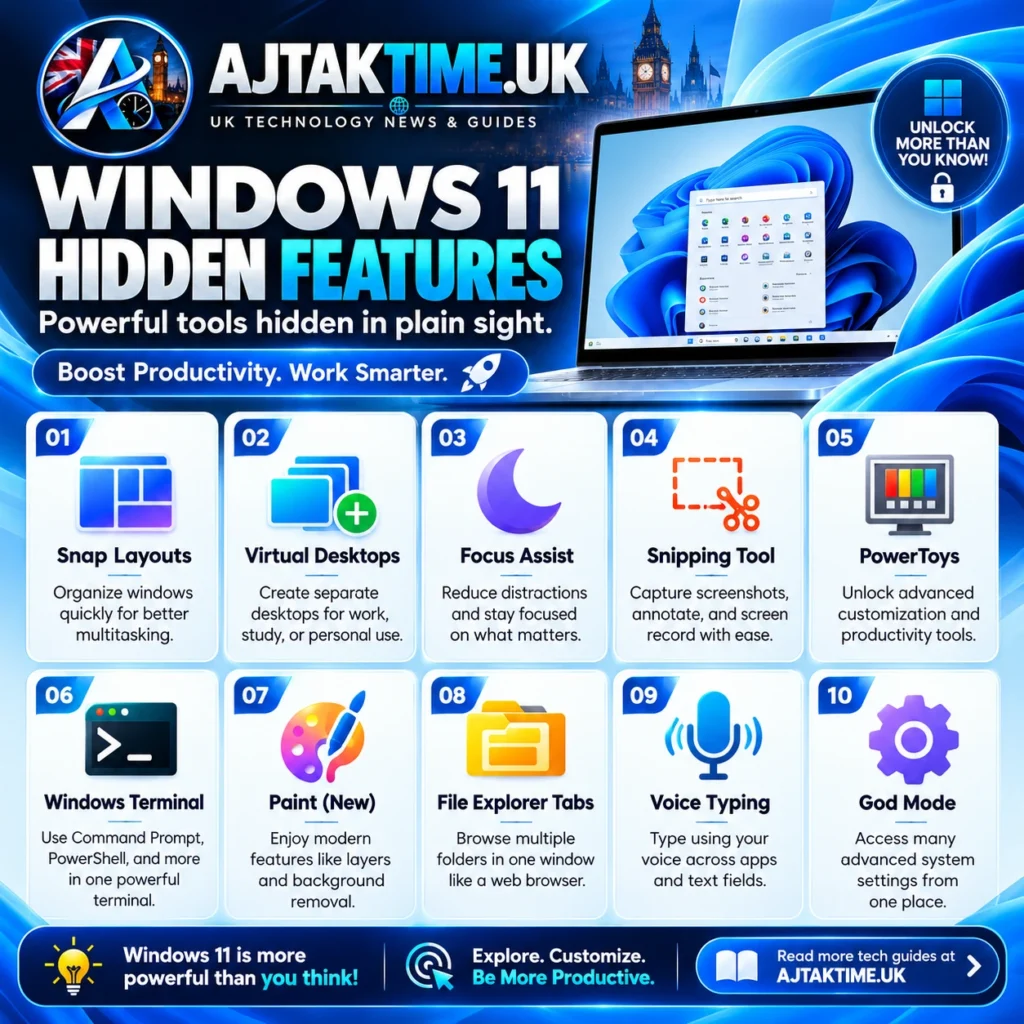
1. Snap Layouts: Organise Multiple Windows Easily
Snap Layouts makes it easier to arrange open applications on your screen. Instead of manually resizing every window, you can place applications side by side or organise them into a grid.
This is especially useful when comparing documents, writing articles while researching, or working with a browser and code editor simultaneously.
How to use Snap Layouts
- Open the applications you want to use.
- Move your mouse over the maximise button in a window, or press Windows + Z.
- Choose a layout from the available options.
- Select which application should occupy each remaining space.
Windows will arrange the selected applications according to the layout.
Useful shortcut: Press Windows + Left Arrow or Windows + Right Arrow to snap the active window to one side of the screen.
2. Virtual Desktops: Separate Work and Personal Tasks
Virtual desktops let you create separate desktop workspaces on the same computer. You can use one for work, another for studying and a third for personal tasks.
Your applications remain open while you switch between desktops, helping you organise your workspace without closing everything.
How to create a virtual desktop
- Press Windows + Tab to open Task View.
- Select the option to create a new desktop.
- Open or move applications into the appropriate desktop.
- Switch between desktops using Task View or the keyboard shortcuts.
Useful shortcuts:
- Windows + Ctrl + D: Create a new virtual desktop.
- Windows + Ctrl + Left Arrow: Switch to the desktop on the left.
- Windows + Ctrl + Right Arrow: Switch to the desktop on the right.
- Windows + Ctrl + F4: Close the current virtual desktop.
Closing a virtual desktop does not automatically close its applications. Windows moves those windows to another desktop.
3. Clipboard History: Copy and Paste More Efficiently
The standard clipboard usually keeps the most recently copied item. Clipboard history lets you access multiple recent text and image items instead.
This feature is helpful when copying research notes, code snippets, URLs or information from several documents.
How to enable clipboard history
- Open Settings.
- Select System, then Clipboard.
- Turn on Clipboard history.
- Press Windows + V to open the clipboard history panel.
Select an item to paste it into your current application. Depending on the content and Windows version, you may also be able to pin frequently used items.
Security tip: Do not copy passwords, banking details or other sensitive information into the clipboard unnecessarily. Clipboard history can retain copied information, so review its contents when using a shared computer.
4. Focus Sessions: Reduce Distractions
If you often lose concentration because of notifications, Windows 11 includes Focus features that can help you work with fewer interruptions.
Focus sessions can be useful for writing, studying, coding and completing tasks that require sustained attention.
How to start a Focus session
- Open the Clock app from the Start menu.
- Find the Focus sessions feature, if available in your version.
- Set a suitable duration.
- Start the session and follow the available notification settings.
You can also manage notification interruptions through Settings > System > Notifications and configure Do Not Disturb.
Focus settings and their integration with the Clock app can vary by Windows version. A Focus session does not automatically block every notification in every application.
5. Windows Search: Find Applications, Files and Settings
Windows Search can help you locate installed applications, documents and system settings without navigating through several menus.
On supported, updated Windows 11 devices, Microsoft is also improving search results and adding ways to complete some actions directly from search. Newer experiences may roll out gradually. <Cite refs={[“turn629682search2″,”turn629682search0”]} />
How to use Windows Search
- Press the Windows key or select the Start button.
- Type the name of an application, file or setting.
- Review the available results.
- Open the appropriate result.
For example, search for Bluetooth settings, Storage settings or Windows Security to access common system tools quickly.
If you cannot find a file, check that you are searching the correct location and that Windows has had time to index it.
6. File Explorer Tabs: Manage Files in One Window
File Explorer is the built in application for browsing files and folders. Its tab interface lets you open multiple folder locations in one window, reducing desktop clutter.
This can be useful when moving files between folders, organising downloads or working with website project files.
How to use File Explorer tabs
- Press Windows + E to open File Explorer.
- Press Ctrl + T to open a new tab.
- Navigate to another folder.
- Switch between tabs as you organise your files.
You can also open separate File Explorer windows when you need to compare two locations side by side.
Tip: Keep important project files in clearly named folders and maintain a separate backup of anything you cannot afford to lose.
7. Snipping Tool: Capture Screenshots and Record Your Screen
Windows 11 includes the Snipping Tool, which makes it easy to capture screenshots without installing a separate application.
It is useful for creating tutorials, documenting technical errors, sharing instructions and preparing website guides.
How to capture a screenshot
- Press Windows + Shift + S.
- Choose the capture mode available in the toolbar.
- Select the area or window you want to capture.
- Open the screenshot notification to edit or save the image.
Depending on the installed version, the Snipping Tool may also offer screen recording and additional editing options.
Useful tip: Before sharing screenshots publicly, check whether they contain passwords, email addresses, account details or other private information.
8. Phone Link: Connect Your Android Phone to Your PC
Phone Link can connect a compatible smartphone to Windows, allowing you to access supported phone features from your computer.
Depending on the phone model and configuration, you may be able to view notifications, read and send messages, make calls, access photos or interact with supported applications.
How to connect your phone
- Search for Phone Link in the Windows Start menu.
- Open the application and follow its setup instructions.
- On your phone, follow the prompts to connect through the supported companion application.
- Sign in or grant the requested permissions.
- Choose which features you want to use.
The available features vary by phone manufacturer, operating system version and connection method. Not every Android phone supports every feature, and iPhone integration has different limitations.
Only grant the permissions required for the features you intend to use.
9. Storage Sense: Automatically Free Up Disk Space
Storage Sense helps manage temporary files and other items that can consume storage space. It can reduce the need to clean your computer manually.
It is especially useful for computers with limited SSD capacity or users who frequently download large files.
How to enable Storage Sense
- Open Settings.
- Select System > Storage.
- Find Storage Sense.
- Enable it and review its configuration.
- Choose when Windows should run it and how temporary files should be managed.
Review the settings carefully before allowing automatic deletion of files in locations such as Downloads or the Recycle Bin.
Important: Storage Sense is not a replacement for backups. Keep a separate copy of important documents, photos and project files.
10. Windows Security: Protect Your Computer
Windows Security provides built in protection features, including Microsoft Defender Antivirus on supported Windows installations, firewall controls and security status information.
These tools help protect your computer against malicious software and other threats.
How to check your security status
- Open the Start menu.
- Search for Windows Security.
- Open the application.
- Review the available protection areas and any warnings.
- Check for security updates through Windows Update.
Keep real time protection enabled unless you have a specific, well understood reason to change it. Avoid installing unknown programs that promise to disable security warnings or dramatically improve PC performance.
For additional protection, use strong passwords, enable multifactor authentication on important accounts and download software from trusted sources.
11. Quick Settings: Access Common Controls Faster
Quick Settings gives you fast access to frequently used controls, such as Wi Fi, Bluetooth, volume, brightness and other available options.
It saves time when you need to change a setting without opening the full Settings application.
How to open Quick Settings
Press Windows + A or select the network, volume or battery area of the taskbar, depending on your device and interface.
From there, you can access available controls and adjust some settings directly.
The controls displayed depend on your hardware. For example, brightness controls may not appear on a desktop PC connected to a monitor that does not expose brightness adjustment through Windows.
12. Nearby Sharing: Share Files with Nearby Devices
Nearby Sharing allows supported Windows devices to exchange files over nearby wireless connections. It can be useful when moving documents or photos between compatible computers without relying on email attachments or external storage.
How to use Nearby Sharing
- Open Settings.
- Go to System > Nearby sharing.
- Choose an appropriate sharing permission.
- Open File Explorer and select the file you want to share.
- Use the Share option and select a nearby compatible device.
The exact interface and available options depend on your Windows version and device configuration.
Only allow sharing with the people or devices you trust, particularly when working in public spaces.
13. Voice Access: Control Your PC with Your Voice
Voice Access lets supported Windows 11 devices be controlled using spoken commands. It can help people who prefer hands free interaction or need an alternative to a mouse and keyboard.
Depending on language support and configuration, you can use voice commands to open applications, navigate the interface, dictate text and perform other actions.
How to get started
- Open Settings and look under Accessibility.
- Find Voice access.
- Review the supported language and setup requirements.
- Complete the setup process and follow the on screen instructions.
Do not confuse Voice Access with voice typing. Voice typing is mainly intended to dictate text, while Voice Access is designed for broader computer control.
14. Microsoft Copilot and Windows AI Features
Windows 11 users may have access to Microsoft Copilot and other AI powered experiences that help with writing, research, explanations and creative tasks.
The available features depend on your region, account, installed applications and device. Some advanced experiences require a compatible Copilot+ PC with specialised hardware. <Cite refs={[“turn629682search4″,”turn629682search5”]} />
Practical ways to use AI
- Ask for an explanation of an unfamiliar Windows setting.
- Draft or improve text before adding it to a document.
- Generate ideas for presentations or projects.
- Ask for troubleshooting steps for a common computer problem.
- Use supported AI tools to assist with image editing or creative work.
Always verify important technical advice before changing system settings or running commands. Avoid pasting passwords, recovery codes or confidential work information into an AI service.
Important: AI features are not identical on every Windows 11 computer. Check your installed applications and Microsoft’s current feature documentation to see what your device supports.
15. Personalise the Taskbar and Start Menu
Windows 11 provides options for customising the taskbar and Start menu so you can access frequently used applications more conveniently.
Newer updates are expanding customisation options, but some changes may not yet be available on every device. <Cite refs={[“turn629682search0″,”turn629682search2”]} />
Useful customisation ideas
- Pin frequently used applications to the taskbar.
- Remove shortcuts for applications you rarely use.
- Arrange Start menu shortcuts around your daily workflow.
- Review available taskbar alignment and layout options in Settings.
- Adjust Widgets and notification preferences to reduce distractions.
To pin an application, search for it in Start, right click the result and choose the available pinning option.
A simple layout with your most frequently used applications can make your computer feel more organised without requiring additional software.
16. Keyboard Shortcuts Every Windows 11 User Should Know
Keyboard shortcuts are among the easiest ways to save time on a Windows computer.
| Shortcut | What it does |
|---|---|
| Windows + E | Open File Explorer |
| Windows + I | Open Settings |
| Windows + L | Lock your computer |
| Windows + V | Open clipboard history, if enabled |
| Windows + Shift + S | Capture a screenshot |
| Windows + Z | Open Snap Layouts |
| Windows + Tab | Open Task View |
| Windows + A | Open Quick Settings |
| Windows + D | Show or hide the desktop |
| Windows + Ctrl + D | Create a virtual desktop |
| Windows + R | Open the Run dialog |
| Ctrl + Shift + Esc | Open Task Manager |
| Alt + Tab | Switch between open applications |
You do not need to memorise every shortcut at once. Start with the five or six that match your daily work, then add more as they become useful.
How to Check Whether Your Windows 11 PC Is Up to Date
Windows features can differ according to the installed version, edition, hardware and rollout status. Microsoft publishes current Windows release information and update details through its official documentation. <Cite refs={[“turn629682search1″,”turn629682search0”]} />
To check for updates:
- Open Settings.
- Select Windows Update.
- Select Check for updates.
- Review the available updates and follow the instructions.
- Restart your computer if required.
You can check your Windows version by pressing Windows + R, entering winver and pressing Enter.
Before a major update, back up important files and ensure that critical applications and hardware drivers are compatible. Do not force an update onto an unsupported computer simply to access a particular feature.
Frequently Asked Questions
What is the most useful feature in Windows 11?
For many users, Snap Layouts, clipboard history, keyboard shortcuts and Windows Search provide immediate productivity benefits. The best feature depends on how you use your computer.
Does Windows 11 have built in antivirus protection?
Yes. Supported Windows 11 installations include Microsoft Defender Antivirus through Windows Security. Keep protection enabled and install security updates regularly.
Can I use Windows 11 AI features on every PC?
No. Some AI features are available through applications, while others require specific hardware, a compatible NPU, a supported Windows version or particular account and regional settings.
How can I make Windows 11 easier to use?
Start by pinning frequently used applications, learning keyboard shortcuts, organising windows with Snap Layouts and removing unnecessary distractions from notifications.
Do Windows 11 features require an internet connection?
Some features work locally, while others require an internet connection, an account or online services. The requirements depend on the specific feature.
How do I find more Windows 11 features?
Check Settings, explore built in applications and read Microsoft’s official Windows support and release notes. Test unfamiliar settings carefully before changing important system configurations.
Final Thoughts
Windows 11 offers more than a modern interface. Features such as Snap Layouts, virtual desktops, clipboard history, Storage Sense, Windows Security and Phone Link can make everyday computer tasks easier and more efficient.
Start with a few features that solve a real problem in your daily workflow. Learn their shortcuts, adjust their settings and explore additional tools when you need them.
For the best experience, keep Windows updated, protect your important files and verify compatibility before relying on newer features.
Official Further Reading
Editorial note: Feature availability may vary by Windows version, region, device and rollout stage. Consult Microsoft’s official documentation for the latest compatibility and setup information.