Is your WordPress website loading slowly, responding late when visitors click buttons, or shifting its layout while the page loads? These problems can frustrate visitors and make your website feel difficult to use, especially on mobile devices.
The problem may be related to your website’s Core Web Vitals. These performance metrics help measure how quickly the main content appears, how responsive the page feels, and whether the layout remains stable during loading.
Fortunately, you can improve Core Web Vitals in WordPress by identifying the underlying problem and making targeted improvements to images, caching, JavaScript, hosting, fonts, and page layout.
In this guide, you will learn how to measure Core Web Vitals, understand the three main metrics, fix common WordPress performance issues, and monitor your results after making changes.
What Are Core Web Vitals?
Core Web Vitals are Google’s metrics for evaluating important aspects of real user experience on a website.
They focus on three areas: loading performance, responsiveness, and visual stability.
1. Largest Contentful Paint (LCP)
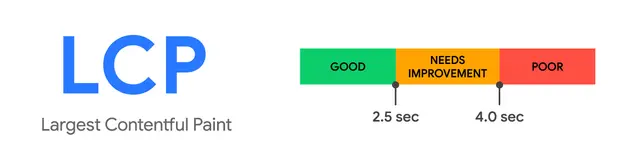
Largest Contentful Paint measures how long it takes for the largest content element visible in the initial viewport to render.
This element might be a featured image, a large banner, a hero image, or a prominent block of text.
A slow LCP can make visitors feel that your website is taking too long to display its main content.
2. Interaction to Next Paint (INP)
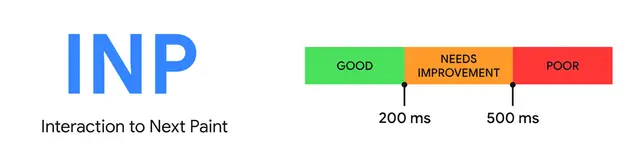
Interaction to Next Paint measures how responsive a page is to user interactions, such as clicking a button, opening a menu, or interacting with a form.
Slow JavaScript, excessive third party scripts, and long running browser tasks can contribute to poor responsiveness.
3. Cumulative Layout Shift (CLS)
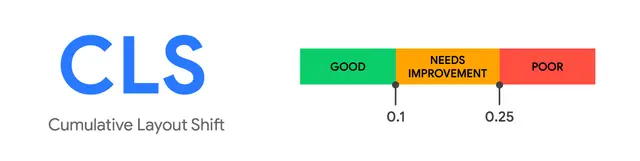
Cumulative Layout Shift measures unexpected movement of page elements during loading and throughout the visit.
For example, a visitor might try to click a navigation link, but an advertisement or image loads above it and moves the link to another position.
A stable layout helps visitors read and interact with your website without unexpected movement.
What Are the Good Core Web Vitals Scores?
Google defines the following good performance thresholds.
| Metric | What it measures | Good target |
|---|---|---|
| LCP | Loading performance | 2.5 seconds or less |
| INP | Responsiveness | 200 milliseconds or less |
| CLS | Visual stability | 0.1 or less |
These targets are assessed using real user data at the 75th percentile. In simple terms, the experience should meet the relevant threshold for at least 75 percent of measured visits.
A single PageSpeed Insights test does not establish how every visitor experiences your website. Real user results can vary by device, network connection, location, and page.
Google’s Core Web Vitals report and PageSpeed Insights are useful starting points for understanding your site’s performance.
Why Are Core Web Vitals Important for WordPress SEO?
Core Web Vitals help website owners understand whether their pages provide a smooth user experience.
A slow website can make it harder for visitors to read articles, browse categories, use navigation menus, or complete forms. Improving performance can help make these tasks easier.
Core Web Vitals are also considered by Google’s ranking systems as part of its broader page experience evaluation. However, good scores do not guarantee higher rankings because search visibility depends on many factors, including relevance, content quality, and competition.
For WordPress publishers, performance improvements should support both visitors and the website’s broader technical SEO.
1. Test Your WordPress Website Before Making Changes
Before installing optimization plugins or changing your website configuration, identify which metric needs attention.
Use Google PageSpeed Insights
- Open Google PageSpeed Insights at https://pagespeed.web.dev/.
- Enter the URL of your WordPress page.
- Run the test.
- Review the mobile and desktop results.
- Check whether field data is available.
- Review the performance diagnostics and suggested improvements.
- Note the main problems before making changes.
Test more than your homepage. If your website publishes articles, test a representative article as well. You can also test category pages and other important templates.
Different page types may have different images, scripts, layouts, and plugins, so their performance can vary.
Check Google Search Console
If your website is verified in Google Search Console:
- Open your property.
- Find the Core Web Vitals report.
- Review the mobile and desktop reports separately.
- Identify URL groups marked Poor or Need improvement.
- Open the affected groups to understand which metric is causing the problem.
The report uses real user data and may not show every URL. New websites or pages with insufficient data may not have a report available.
Important: Record your baseline results before changing anything. This makes it easier to determine whether an optimization actually helped.
2. Improve Largest Contentful Paint (LCP)
LCP is often affected by server response time, the main image, render blocking resources, and how quickly the browser can display important content.
Optimize your featured images
Large images can take longer to download, particularly on mobile connections.
Try these improvements:
- Resize images to dimensions appropriate for their display area.
- Compress images before uploading them.
- Use modern formats such as WebP or AVIF where supported.
- Avoid uploading unnecessarily large images for small display areas.
- Serve appropriately sized responsive images.
For example, a small article thumbnail does not usually need the same image dimensions as a large full width banner.
Image optimization can reduce transfer size, but the best format and dimensions depend on the image, browser support, and how it is displayed.
Do not lazy load the main LCP image
Lazy loading can help by postponing the download of images that are outside the initial viewport.
However, applying lazy loading to the main image that determines LCP can delay its discovery and slow the page’s initial loading experience.
Review your theme and optimization settings to make sure the main above the fold image can load promptly. Keep lazy loading enabled for appropriate below the fold images.
Do not disable lazy loading for every image without checking the impact on page size and performance.
Improve server response time
If the server takes too long to begin responding, the browser has to wait before it can receive and render important content.
Possible improvements include:
- Using suitable hosting resources for your website’s traffic.
- Enabling supported page caching.
- Keeping WordPress, themes, and plugins maintained.
- Removing unnecessary plugins and expensive background tasks.
- Investigating slow database queries or server resource limits.
If the server remains slow after basic optimization, review the hosting environment and its resource usage. Changing themes or installing more plugins will not necessarily fix a server level problem.
Reduce render blocking resources
CSS and JavaScript can delay the display of important page content when they must be downloaded or processed first.
Use PageSpeed Insights to identify resources that delay rendering. Then review whether your optimization tools can safely remove unused CSS, defer non critical JavaScript, or reduce unnecessary assets.
Test each change carefully. Aggressive optimization settings can break navigation, forms, menus, or other website functionality.
3. Improve Interaction to Next Paint (INP)
A WordPress website can load its initial content quickly and still feel unresponsive when visitors interact with it.
INP improvements often involve reducing unnecessary JavaScript work and making important interactions easier for the browser to process.
Remove unnecessary plugins
Some plugins add JavaScript, CSS, background requests, or other resources to your website.
Review your installed plugins and ask:
- Is this plugin still needed?
- Does it add scripts to pages that do not use its features?
- Does it duplicate functionality already provided elsewhere?
- Is it maintained and compatible with your current setup?
Deactivate and remove plugins that you no longer need, after confirming that they are not required by your theme or another plugin.
Do not remove a plugin solely because it is installed. First check what it does and test your website after any changes.
Reduce unnecessary JavaScript
Third party widgets, social sharing tools, popups, sliders, chat tools, and analytics scripts can add browser work.
To investigate:
- Review the JavaScript related diagnostics in PageSpeed Insights.
- Identify scripts that are unnecessary on the affected page.
- Remove features you no longer use.
- Load non critical scripts later when technically appropriate.
- Test menus, search, forms, and interactive elements after making changes.
Avoid delaying scripts that are essential for the page to function correctly.
Avoid excessive animations and effects
Complex animations, large sliders, and unnecessary visual effects may increase browser workload.
Consider replacing heavy effects with simpler alternatives. Use lightweight menus and avoid adding several scripts to achieve a visual effect that can be created with simpler CSS.
The goal is not to remove all design features. It is to keep the experience responsive while preserving the functionality visitors need.
4. Fix Cumulative Layout Shift (CLS)
Layout shifts often happen when images, advertisements, fonts, or other elements appear without enough space being reserved for them.
Set image dimensions
When the browser does not know an image’s dimensions, it may need to rearrange the page after the image loads.
Make sure images have appropriate width and height information, or that their layout reserves the correct aspect ratio.
WordPress and many themes already handle dimensions for standard image blocks. Check custom HTML, manually inserted images, and third party embeds if shifts continue.
Reserve space for advertisements and embeds
Advertisements, video embeds, and promotional widgets can cause layout shifts if they are inserted into the page after the surrounding content has loaded.
Reserve a suitable area for these elements whenever possible.
This is particularly important for publishers using advertising systems. Avoid allowing an advertisement to push article text or navigation links down unexpectedly after a visitor starts reading.
Optimize font loading
Web fonts can change the size and appearance of text when they load, potentially moving surrounding content.
To reduce font related shifts:
- Limit the number of font families and weights you use.
- Prefer efficient font files.
- Use appropriate fallback fonts.
- Test whether font loading causes visible changes in headings or navigation.
- Use font loading techniques suited to your design and performance needs.
Do not add preloading for every font file. Prioritize only resources that are genuinely important to the initial page display.
Avoid inserting content above existing content
A notification bar, cookie banner, promotional message, or other component can move existing content when it appears late.
Where possible, reserve space for such components or design them so that they do not unexpectedly push the main page content down.
If you use a cookie consent tool, advertising plugin, or popup plugin, test the page with the feature enabled and disabled to identify whether it contributes to layout movement.
5. Enable WordPress Caching
Caching can reduce the work required to generate pages and help deliver content more quickly.
The right caching method depends on your hosting environment and the features already available.
Use a suitable caching solution
Depending on your setup, caching may be available through your hosting provider, a WordPress plugin, or a content delivery network.
Check which caching features are already enabled before installing another plugin.
Configure caching carefully
- Confirm that caching is supported by your hosting environment.
- Enable an appropriate page caching method if available.
- Check whether static resources can be cached efficiently.
- Follow your caching solution’s documentation for any additional optimization settings.
- Test your website while logged out and in a private browser window.
- Verify that forms, login areas, and dynamic content still work correctly.
Do not cache personalized pages or sensitive user specific content in a way that could expose one visitor’s information to another.
For more details, read our guide on How to Clear WordPress Cache: A Step by Step Guide.
6. Optimize CSS and JavaScript Safely
CSS controls how your website looks, while JavaScript provides many interactive features. Both can affect performance when they are unnecessarily large or loaded inefficiently.
Remove unused CSS where appropriate
Some themes and plugins load styles on pages that do not use them. Reducing unnecessary CSS may help the browser render the important content sooner.
Use your performance report to identify potential problems. If you use a plugin that removes unused CSS, test important pages carefully because some styles may be applied dynamically.
Minify files where useful
Minification removes unnecessary characters from code without intentionally changing its functionality.
It can reduce file sizes, although the benefit varies by website. Modern hosting and optimization tools may already perform some of these tasks.
Avoid enabling every optimization at once
Combining files, delaying scripts, removing unused CSS, and changing resource loading can sometimes cause unexpected problems.
Enable one relevant setting at a time, clear the applicable cache, and test the site. If a menu, form, layout, or other feature breaks, undo the relevant change and investigate further.
7. Optimize Fonts and Third Party Services
External resources can add network requests and browser work to your WordPress website.
Examples include web fonts, embedded videos, social media widgets, advertising scripts, analytics tools, and live chat services.
Review third party scripts
Check which external services are necessary for your website. Remove unused widgets and avoid loading several tools that perform the same job.
For services that are necessary, follow the provider’s current performance guidance and load them in a way that does not unnecessarily delay important content or interactions.
Use fonts efficiently
If your website loads multiple font families and weights, review whether they are all required.
Using fewer font files can reduce network requests and help keep the page simpler. If you host fonts locally, ensure that you have the necessary rights and that your configuration remains maintainable.
8. Use a Lightweight WordPress Theme
Your theme influences the HTML, CSS, JavaScript, layout, and other resources used by your website.
A theme with unnecessary effects or features can make optimization more difficult.
Review your current theme
Ask yourself:
- Does the theme load resources that the site does not use?
- Are there large sliders or animations that can be removed?
- Does the theme work well on mobile devices?
- Are its templates maintained and compatible with your WordPress version?
- Can the design achieve the same result with fewer resources?
A lightweight theme can help, but changing themes is not automatically the best solution. Hosting, images, plugins, advertisements, and custom code can still affect performance.
Before replacing a theme, back up your website and test the new theme in a staging environment where possible.
9. Check Mobile Performance Separately
Mobile visitors may use slower network connections and devices with less processing power than desktop computers.
That means a website that feels fast on a desktop may still perform poorly on mobile.
To improve the mobile experience:
- Use appropriately sized images.
- Avoid large above the fold banners that delay the main content.
- Keep navigation simple and responsive.
- Reduce unnecessary JavaScript.
- Avoid excessive popups and heavy widgets.
- Check that advertisements and embeds do not shift the layout.
- Test important buttons, menus, and forms on a real mobile device.
Always review mobile results separately in PageSpeed Insights and Search Console.
10. Recheck Your Website After Optimization
Once you have made changes, run the same tests again.
Follow this testing process
- Clear the relevant caches if necessary.
- Open PageSpeed Insights and test the same URLs.
- Compare the new results with your original measurements.
- Check whether LCP, INP, and CLS have improved.
- Test the website’s important features manually.
- Review Search Console for changes in real user performance over time.
A laboratory test can help diagnose a problem immediately, but real user metrics take time to reflect changes across visitors and devices.
Google Search Console may also need sufficient new field data before the report reflects the effect of your improvements.
If an issue remains, investigate the specific metric rather than repeatedly installing optimization plugins.
Common WordPress Core Web Vitals Problems and Solutions
PageSpeed Insights shows a poor LCP score
Check server response time, the main image, render blocking resources, and whether important content is delayed by CSS or JavaScript.
My website is fast on desktop but slow on mobile
Review mobile image sizes, JavaScript workload, hosting response time, and unnecessary elements near the top of the page.
My CLS score is high
Look for images without reserved dimensions, late loading advertisements, font changes, cookie banners, and elements inserted above existing content.
My website loads quickly but buttons respond slowly
Investigate JavaScript execution, third party scripts, heavy interactions, and unnecessary event handlers. INP is about responsiveness, not just initial loading speed.
My score became worse after installing an optimization plugin
The plugin may have introduced additional resources or an incompatible optimization setting. Review the changes, test one setting at a time, and revert changes that cause problems.
My Core Web Vitals report has no data
Your website or the affected URL group may not have enough real user data for the report. Use PageSpeed Insights to run a test while continuing to monitor Search Console.
Frequently Asked Questions
What is the best way to improve Core Web Vitals in WordPress?
Start by testing your website and identifying the metric that needs improvement. Optimize the main image and server response for LCP, reduce unnecessary JavaScript for INP, and reserve space for images and other dynamic elements to reduce CLS.
Do Core Web Vitals affect Google rankings?
Google considers Core Web Vitals as part of its broader page experience evaluation. However, good scores do not guarantee high rankings. Relevant, helpful content and other SEO factors remain important.
Can a caching plugin fix all Core Web Vitals problems?
No. Caching can help with loading performance, but it does not automatically fix every issue involving JavaScript responsiveness, layout shifts, oversized images, or third party services.
What are the good Core Web Vitals targets?
The good targets are LCP at or below 2.5 seconds, INP at or below 200 milliseconds, and CLS at or below 0.1.
Should I optimize mobile or desktop first?
Review both, but prioritize the issues reported as Poor and the page groups that matter most to your visitors. Mobile performance deserves particular attention because devices and network conditions can vary significantly.
How long does it take to improve Core Web Vitals?
Some laboratory test results can change immediately after a successful fix. Real user reports take longer to reflect the improvement because they depend on field data collected over time. The timeline varies with traffic, the issue, and the amount of new data available.
Further Reading
- WordPress Troubleshooting FAQ
- WordPress Debugging Documentation
- Health Check & Troubleshooting Plugin
- How to Fix the WordPress Critical Error
Final Thoughts
Improving Core Web Vitals in WordPress starts with finding the actual cause of poor performance rather than installing every speed optimization plugin you can find.
Measure your website first, then focus on the metric that needs attention. Optimize images and server response time for LCP, reduce unnecessary JavaScript for INP, and prevent unexpected layout movement to improve CLS.
Make changes carefully, test important website features after each change, and monitor real user performance in Google Search Console.
A faster, more responsive, and more stable website can provide a better experience for readers while supporting your broader website performance and SEO goals.
For more practical tutorials, explore the WordPress & Website Guides section on AjTakTime UK.
Editorial note: Performance results vary by hosting provider, theme, plugins, page design, third party services, and visitor conditions. Verify the effect of each optimization on your own website instead of assuming a particular plugin or setting will guarantee good scores.