The short-form content landscape is changing fast. In 2026, raw editing skill isn’t enough; you need speed and intelligence to keep up with the algorithm. Fortunately, CapCut’s artificial intelligence tools are revolutionizing how creators approach the monetization game. If you are serious about making money through the CapCut Creator Program, you must integrate automation. This guide breaks down the 5 CapCut AI features that will transform your template creation workflow. They will help you craft viral templates faster and more consistently than ever before. Understanding and mastering these CapCut AI features is the ultimate shortcut to dominating the trending charts this year.
What Is CapCut AI?
CapCut AI refers to the suite of advanced, automated tools embedded within the CapCut video editing app. These tools use machine learning and deep learning to perform complex, time-consuming editing tasks instantly. Think of it as having a professional editor inside your phone, capable of handling everything from synchronizing clips to removing backgrounds and generating text. It’s the core engine driving the platform’s focus on streamlined, high-quality content creation. These intelligent tools are designed to eliminate manual effort and maximize the impact of every short-form video.
Why CapCut AI Matters in 2026
In 2026, the velocity of trends on platforms like TikTok and Reels is higher than ever. To capture a trend, you need to publish a template within hours, not days. This is where the 5 CapCut AI features provide an enormous competitive edge. They matter because they enable two key things: speed and polish.
- Speed: AI dramatically cuts down the time spent on repetitive tasks like beat-syncing and captioning, allowing you to publish multiple templates per day.
- Polish: AI ensures professional-grade results, like smooth transitions and flawless background removal, making your templates look high-budget.
This combination of speed and quality is essential for creating viral templates that satisfy the algorithm and, most importantly, the end-user.
Key Benefits of Using CapCut AI in Templates
Integrating CapCut AI features into your templates offers specific, tangible advantages for creators aiming for high-volume usage:
- Maximized View Time: Features like auto captions drastically increase accessibility, keeping viewers engaged longer.
- Rapid Trend Creation: The Text-to-Video AI allows you to instantly generate visuals for a breaking news or spoken-word trend.
- Reduced Manual Effort: You eliminate tedious tasks like manually syncing clips or adding keyframes for motion.
- Higher Quality Templates: AI tools ensure professional results, such as clean background removal, making your template look premium.
- Monetization Opportunity: Templates that use complex AI effects often stand out, leading to more exports and increased revenue from the CapCut Creator Program. Link to: [CapCut Creator Program Earnings] — “Use anchor text: CapCut Creator Program Earnings”
- Cross-Platform Consistency: AI features help maintain a unified, high-quality look across templates for TikTok, Reels, and Shorts.
Step-by-Step Guide to Using the 5 CapCut AI Features
Here are the top 5 CapCut AI features you must master to create viral templates in 2026.
1. AI Auto Captions & Translation
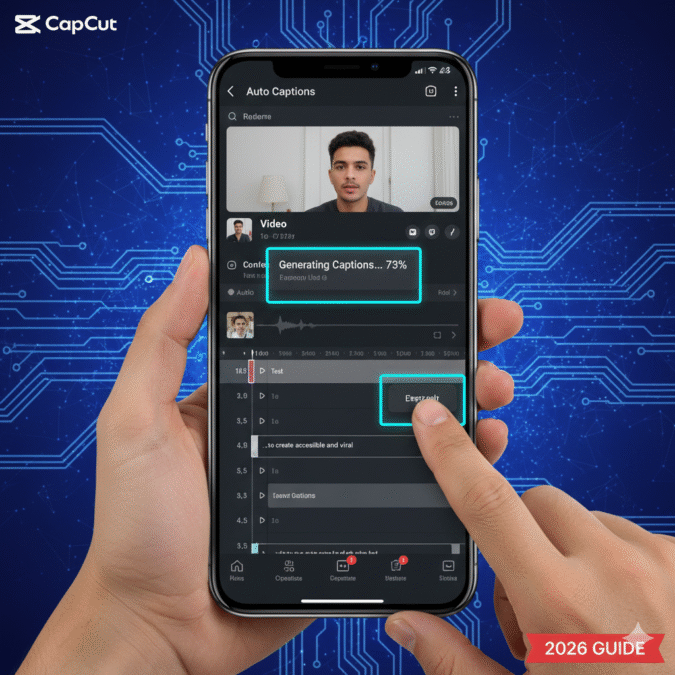
Subtitles are not optional; they are a key driver of watch time. Use the Auto Captions feature on any voiceover or spoken-word template. The AI accurately transcribes the speech and generates perfectly timed, editable captions. For global reach, use the AI Translation feature to create multi-language templates, significantly boosting your potential audience.
2. Smart Background Remover / Chroma Key
No template should look unprofessional due to a distracting background. Use the Smart Background Remover to instantly isolate a subject without needing a green screen. This is crucial for Transition Templates and Product Showcase Templates. This feature is a game-changer for clean, professional-looking edits.
3. AI Text-to-Video Generator
When a new story or script trend breaks, speed is everything. Instead of manually searching for B-roll footage, use the AI Text-to-Video feature. Input simple text prompts related to the trend, and the AI generates relevant video clips. You can then structure these clips into a template quickly. This is the ultimate tool for rapid content creation based on text prompts.
4. Auto Beat Sync / Music Markers
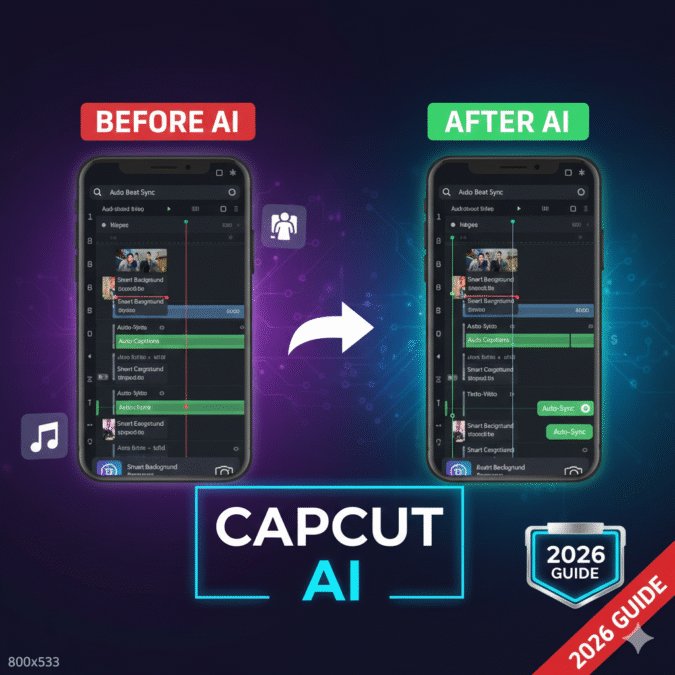
The backbone of any viral video is the music and the rhythm of the cuts. Avoid manually placing clips to match the beat. Use Auto Beat Sync. This CapCut AI feature automatically analyzes the audio track and places markers on the timeline for perfectly timed transitions, ensuring a seamless, professional-looking template. External Link: [Official CapCut Tutorial on Beat Sync]
5. AI Text Effects & Styles
Text animations are a massive visual hook in short-form video. Don’t waste time keyframing. Use the AI Text Effects library to apply dynamic animations, glitters, and 3D effects to your template text instantly. This level of polish helps your viral templates stand out immediately in a cluttered feed.
Common Mistakes to Avoid with CapCut AI Templates
Even with smart tools, creators make simple errors that kill their potential views. Here are the top mistakes to avoid:
- Over-Automation: Don’t let the AI do everything. Always perform a manual fine-tune of the auto captions or beat markers. Solution: Spend 5 minutes manually adjusting the AI output.
- Neglecting Optimization: Relying only on the AI-generated visuals without adding keyword-rich titles and tags. Solution: Use SEO principles for your CapCut template title.
- Stale Trends: Using AI to create a perfect template for a trend that ended last week. Solution: Check TikTok’s official ‘Creative Center’ for real-time trending audios.
- Bad Export Settings: Exporting templates in low resolution or with the watermark intact. Solution: Always export in 1080p (or 4K, if applicable) and ensure the final CapCut outro clip is deleted.
- Inconsistent Output: Using too many different styles in one template, confusing the viewer. Solution: Stick to one primary AI effect per template for maximum impact.
Expert Tips for Better Results with CapCut AI Features
Ready to truly master the 5 CapCut AI features? Implement these advanced strategies:
- The AI Template Starter: Use the AI Text-to-Video tool to generate a rough draft of the video structure. Then, replace the AI’s stock clips with your own high-quality footage. This maintains the perfect AI pacing while adding unique content.
- Layering the Polish: Never use just one AI feature. Layer Smart Background Remover for clean cuts, then Auto Captions for engagement, and finally an AI Text Effect for the visual hook.
- Affiliate Integration: If you are a CapCut Pro affiliate, create templates that showcase Pro-only effects. This demonstrates the value of the subscription, encouraging sign-ups. Link to: [CapCut Pro vs Free Comparison] — “Use anchor text: CapCut Pro features review”
- Outbound Authority Links: Stay updated on short-form video best practices. External Link: [The Science Behind Viral Short-Form Video]

Conclusion
The 5 CapCut AI features—Auto Captions, Smart Background Remover, AI Text-to-Video, Auto Beat Sync, and AI Text Effects—are non-negotiable for any creator serious about success in 2026. They collectively provide the speed, polish, and accessibility required to create viral templates consistently. By integrating these CapCut AI features into your workflow, you not only save countless hours but also significantly increase the likelihood of your templates being discovered and used by the massive short-form audience. Don’t edit harder; edit smarter. Start utilizing CapCut’s intelligent tools today to take your content creation and monetization to the next level.
FAQs (Schema-friendly)
Q1: Are the 5 CapCut AI features free to use, or do I need CapCut Pro?
Many of the core CapCut AI features, such as Auto Captions and basic effects, are available for free. However, the most advanced tools, like high-resolution AI Text-to-Video generation and some premium background removers, typically require a CapCut Pro subscription.
Q2: How does using CapCut AI features help my template go viral?
Using CapCut AI features ensures high technical quality, perfect beat synchronization, and accessibility (via auto captions). These factors lead to higher viewer retention, which algorithms on platforms like TikTok and Reels reward with increased reach and viral potential.
Q3: What is the best way to find trending sounds for my AI-enhanced templates?
The best way to find trending sounds is to check the ‘For You’ or ‘Trending’ section within the CapCut app’s template tab, or directly monitor the TikTok ‘Creative Center’ to ensure your AI template uses current TikTok trends.
Q4: Can I use the AI Text-to-Video feature to generate an entire template?
Yes, the AI Text-to-Video tool can generate a full video structure based on a script, which you can save and share as a template. However, replacing some stock visuals with unique, high-quality media is recommended for higher engagement.
Q5: Is there a limit to how many times I can use the CapCut AI features?
For free users, there may be daily limits on certain resource-intensive CapCut AI features like high-resolution AI Art or Text-to-Video generation. CapCut Pro users typically receive expanded or unlimited access.
Q6: How do I ensure the auto captions generated by CapCut AI features are 100% accurate?
While CapCut’s auto captions are highly accurate, you should always review and manually edit the text for proper nouns and complex terminology within the CapCut text editor to ensure 100% accuracy.
CapCut has an instructional video on how to use their templates to create content. If you want to see how these advanced AI tools integrate into the overall workflow, check out How to Make Videos with CapCut Templates.